I love this "say" tracking plugin, it's great.
Class it as a
'must have' plugin.
tl;dr;
ensure have system sounds application enabled!
Today, I've learned something new that some may already know. But if it helps someone else, I wanted to write here so all can be sure.
In the Windows "Volume Mixer" app, I control which applications are allowed to make sounds and not.
From time to time I've disabled the "System Sounds" application, which quiets Windows but lets other applications get on doing their things ok.
Today, I've had a guy come up to my camp and say.
I saw him arrive on the map and stand by the camp, I saw the text in the "say detection" window, but I didn't hear anything.
Yet the EQ app is making all its environmental sounds, also the spell casts, and combat noises.
To test, I did /beep
( as that is how the plugin defaults to make sound notification ), and heard nothing.
I unchecked the speaker disabling system sounds.
Retested with /beep, and it worked!
I'd thought that the EQ process was doing the beeps, but it appears it requests it to come from Windows. 
I assume most are familiar with it, but this is the Volume Mixer app:
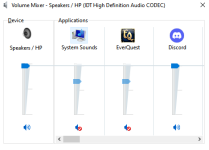
I believe there have been changes in Windows 10, that it's features have been moved around into system settings.
The speaker icon and access to "volume mixer" may not be present on those task bar icons.
I launch it by entering this to the Run window:
SndVol
( the binary is actually located in c:\windows\system32 )
Once launched, I can then pin it to the task bar for easy access.
One last thing to add.
If you have multiple EQ instances up, then each one has it's own bar in the Volume Mixer.
Not only that, it will not just be label as "Everquest". It picks up the title of the window.
For me, that means I get the EQ badge and
"the character name (level and zone)" displayed in the Volume Mixer.
It makes it quick to enable / disable per instance as you choose.
All in all, one stop shop for enabling / disabling audio, per app quickly.
Regards and Best Wishes.






 Hope I never have the circumstance arise.





 Commits