• You've discovered RedGuides, an EverQuest multi-boxing and scripting community 🧙‍♀️⚙️. We want you to play several EQ characters at once, come join us and say hello! 👋

  • A TLP without truebox has thawed (Very Vanilla ready)
    Frostreaver
AutoLogin (core plugin)

Release AutoLogin (core plugin)

It does not work at the moment for anything as I understand it.
Thanks.
Just saw a comment on git that some settings are read before MQ has chance to inject and load a different ini. So we need something that changes the ini before everquest starts.
I just made a powershell to do just that. Seems to work, but now i'm back to using the old mq2autologin method.
 
I'm trying to find my MQ2AutoLogin.ini but I can't seem to find it anywhere (done a search for it on my computer). Trying to set it for stationnames for isboxer but again no ini to be seen. Profiles are loaded and will autologin if I run from MQ but the isboxer does the group_servername:toonname for login.
 
is there a way to retrieve it or reset it? or even a file to delete to create a new one
 
Last edited:
I play on an emu server.
MQ2Autologin started failing at login for me yesterday after I updated MQ. I am not sure if that has anything to do with it.

My typical flow is logging in my characters through using the group profiles. I use the "Launch Selected Group" button.

When I launch the group all the characters get to the login screen and I get "DB Error - Invalid Password".

I tried to login by clicking "Play" for that same character through the character options. Same "DB Error - Invalid Password"

Next I tried logging in by selecting the account, right clicking and selecting "Launch Client & Log In". This worked. The account logged in to the server select. I select the server and then I can select the profile to load and the character will load as intended.

I changed the name of the Login.db to try to start over and it still has the invalid password.
 
I installed MQ from the RG launcher.

When right click on the MQ Icon the menu up comes the menu, but all the sub menus items are empty. There is no Add new like in the characters or profile menu's like mentioned in the videos.

I unloaded all my tunes, and reinstalled. Same issue.

I did select OpenUI from the menu and managed to figure out how to get a character to load automatically, it's nice to follow the videos exactly however. The 1 Account does now load in the Icon Right Click menu, but the rest are still blank. Any thoughts on what might be wrong so I can follow the video precisely?


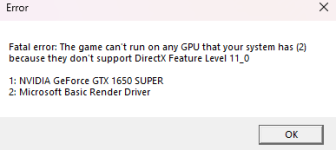
This might be a VM thing. A clue to that is attached.
 

Attachments

  • Error.jpg
    Error.jpg
    93.5 KB · Views: 0
I installed MQ from the RG launcher.

When right click on the MQ Icon the menu up comes the menu, but all the sub menus items are empty. There is no Add new like in the characters or profile menu's like mentioned in the videos.

I unloaded all my tunes, and reinstalled. Same issue.

I did select OpenUI from the menu and managed to figure out how to get a character to load automatically, it's nice to follow the videos exactly however. The 1 Account does now load in the Icon Right Click menu, but the rest are still blank. Any thoughts on what might be wrong so I can follow the video precisely?


This might be a VM thing. A clue to that is attached.
You're talking about mq itself, not the RG launcher
 
I installed MQ from the RG launcher.

When right click on the MQ Icon the menu up comes the menu, but all the sub menus items are empty. There is no Add new like in the characters or profile menu's like mentioned in the videos.

I unloaded all my tunes, and reinstalled. Same issue.

I did select OpenUI from the menu and managed to figure out how to get a character to load automatically, it's nice to follow the videos exactly however. The 1 Account does now load in the Icon Right Click menu, but the rest are still blank. Any thoughts on what might be wrong so I can follow the video precisely?


This might be a VM thing. A clue to that is attached.
You can't exactly follow outdated videos, my dude! Pretty sure stuff has changed since then.

This sounds like auto login stuff
Take a look at some updates instructions from Sic.
https://www.redguides.com/community/threads/mq2autologin.43323/page-26#post-633533

If I misunderstood what you are asking for, my apologies. Never watched the vids.
 
you should be able to still right click on the mq2 icon in the taskbar. go into autologin settings and there is a retrieve master password button

think there are a few of us running into this today
Saved my butt tonight THANKS... just a few extra clicks but I found it and now can log on.
 
Having an issue with autologin giving the following error:
Code:
[error] [AutoLogin.cpp:361] Failed to create new eqgame process: The requested operation requires elevation.

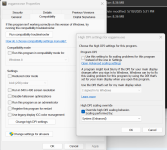
It was working fine, and eqgame.exe is not set to run as administrator per say, but it stopped working when I set the DPI settings for eqgame.exe:
Screenshot 2025-05-12 092327.png

I suspect this is making it require administrator, but if I disable this then I can barely read anything in the UI. 16 inch QHD WQXGA laptop screen and my ever older eyes with RoF2 client just don't mesh well.

Is there any workaround I can do?
 
Last edited:
ok I know this is probably in here somewhere so please delete this if I am just too dumb to find it in the search...

I have followed all the step by step, I think I got most of it but when I try to launch my character I get this error...

I am not sure if it is because I somehow messed up the autologin somehow, maybe the eq path? I am so lost.

1748963624644.png
 
ok I know this is probably in here somewhere so please delete this if I am just too dumb to find it in the search...

I have followed all the step by step, I think I got most of it but when I try to launch my character I get this error...

I am not sure if it is because I somehow messed up the autologin somehow, maybe the eq path? I am so lost.

View attachment 69877
This is an eq bug, doesn't have anything to do with autogin
 
ok I know this is probably in here somewhere so please delete this if I am just too dumb to find it in the search...

I have followed all the step by step, I think I got most of it but when I try to launch my character I get this error...

I am not sure if it is because I somehow messed up the autologin somehow, maybe the eq path? I am so lost.

View attachment 69877

Never mind, I was trying to launch from character screen instead of the profile...Launch all starred. That seemed to autologin just fine.
 
i know this is a bit old; but was just getting a new pc going and ran into this. not sure if this is the Fix; but it worked for me:
i just copied and pasted 3 files: (from my old pc/ mq /config folder--to the new mq install /config folder)
login.db
login.db-shm
login.db-wal
 
i know this is a bit old; but was just getting a new pc going and ran into this. not sure if this is the Fix; but it worked for me:
i just copied and pasted 3 files: (from my old pc/ mq /config folder--to the new mq install /config folder)
login.db
login.db-shm
login.db-wal
You only need the login db as mentioned in the thread. No need to bump this (and I'm gonna merge the whole thing to the autologin thread anyhow)
 
After watching the Video guide a couple of times I'm busy configuring MQ according to the shown instructions. In the second video, titled "AutoLogin: Multiple EverQuest Character Login for Multiboxing" some the details vary significantly from what I encounter. Perhaps this is because I installed the full version of MQ from Github before installing very vanilla? Anyway, to try and help others who might encounter the same issues I thought I'd detail what mine looks like and the steps I had to take to configure and Auto-Login Group.

  • When you Right-Click the MQ button you cannot Right-Click "Profiles" in order to create a new Auto-Login profile.
  • Instead Right-CLick the MQ button and then click "Open Config", which is under the "AutoLogin" sub section.
  • From inside the Config dialog (which may open on a secondary monitor) first configure all of your EverQuest Accounts.
    • Be warned that when you configure your EQ Install path you'll need to terminate it with a "\" or you'll get an error. In my case the path is "S:\Daybreak\Installed Games\EverQuest"
    • If you simply browse to your EQ folder and try to select it you'll receive an error. I resolved this by browsing back to S:\Daybreak\Installed Games, then from there selecting the folder "EverQuest" to have it populate the visible box, and then manually appending a "\" to it in that visible box.
    • After that MQ will be able to correctly locate EQGAME.EXE
  • In order to populate all your available characters on all your accounts simply Right-Click on the created account you wish to populate and select "Launch Client & Login"
    • Once MQ has launched EQ and logged in select the server your characters are on and open it.
    • You'll notice a MQ dialog in the top right referring to "AutoLogin Status"
    • For good measure I click on the "Select Character" button, then browse to my EQ Server, and make sure that my characters populate into the auto-generated list.
    • Once your Characters have auto-populated you can shutdown the EQ client.
    • Repeat these steps for each EQ account you have.
  • Returning to the MQ "Open Config" dialog and browsing "Characters" should now show you all your available characters, on all your accounts, on all servers you have browsed.
  • Now you're ready to create your AutoLogin Profile! In order to do so:-
    • In the left pane of the Dialog click "Profiles", under the "AutoLogin" heading.
    • Click "Add Group" in the right hand side of the dialog. Assign a meaningful name to the "Profile Group Name" Field.
    • Verify the Path to the EQ installation you wish to use.
    • Click "OK"
    • You'll be returned to MacroQuest / AutoLogin / Profiles Config dialog with an empty list of Characters.
  • Populate the right hand side of the Profiles dialog by clicking "Add Profile", which is in the lower right side pane of the dialog.
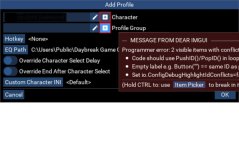
    • This will open a "Add Profile" dialog.
    • Click inside the "Character" box to see a dropdown list of your characters.
    • Please note that this list does not include the account under which the character exists, so it's up to you to keep track of this detail.
    • Beware of assigning two characters from the same account to a single AutoLogin Profile as this won't work, obviously.
    • There are additional fields in the "Add Profile" dialog which you can investigate, but are outside the scope of this post.
    • Repeat for all the characters you wish to include in the AutoLogin Profile.
  • You're done!
  • Repeat as needed to create additional AutoLogin Profiles.

Now when you right-click "MQ" on your taskbar and scroll up to "Profiles" it will populate with the AutoLogin Profiles you've created. Select the one you want and then "Launch All Starred". All the specified accounts and characters will login - almost like magic!

Please note that at this point your characters will all be logged in, but will not be in a group.
 
After watching the Video guide a couple of times I'm busy configuring MQ according to the shown instructions. In the second video, titled "AutoLogin: Multiple EverQuest Character Login for Multiboxing" some the details vary significantly from what I encounter. Perhaps this is because I installed the full version of MQ from Github before installing very vanilla? Anyway, to try and help others who might encounter the same issues I thought I'd detail what mine looks like and the steps I had to take to configure and Auto-Login Group.

  • When you Right-Click the MQ button you cannot Right-Click "Profiles" in order to create a new Auto-Login profile.
  • Instead Right-CLick the MQ button and then click "Open Config", which is under the "AutoLogin" sub section.
  • From inside the Config dialog (which may open on a secondary monitor) first configure all of your EverQuest Accounts.
    • Be warned that when you configure your EQ Install path you'll need to terminate it with a "\" or you'll get an error. In my case the path is "S:\Daybreak\Installed Games\EverQuest"
    • If you simply browse to your EQ folder and try to select it you'll receive an error. I resolved this by browsing back to S:\Daybreak\Installed Games, then from there selecting the folder "EverQuest" to have it populate the visible box, and then manually appending a "\" to it in that visible box.
    • After that MQ will be able to correctly locate EQGAME.EXE
  • In order to populate all your available characters on all your accounts simply Right-Click on the created account you wish to populate and select "Launch Client & Login"
    • Once MQ has launched EQ and logged in select the server your characters are on and open it.
    • You'll notice a MQ dialog in the top right referring to "AutoLogin Status"
    • For good measure I click on the "Select Character" button, then browse to my EQ Server, and make sure that my characters populate into the auto-generated list.
    • Once your Characters have auto-populated you can shutdown the EQ client.
    • Repeat these steps for each EQ account you have.
  • Returning to the MQ "Open Config" dialog and browsing "Characters" should now show you all your available characters, on all your accounts, on all servers you have browsed.
  • Now you're ready to create your AutoLogin Profile! In order to do so:-
    • In the left pane of the Dialog click "Profiles", under the "AutoLogin" heading.
    • Click "Add Group" in the right hand side of the dialog. Assign a meaningful name to the "Profile Group Name" Field.
    • Verify the Path to the EQ installation you wish to use.
    • Click "OK"
    • You'll be returned to MacroQuest / AutoLogin / Profiles Config dialog with an empty list of Characters.
  • Populate the right hand side of the Profiles dialog by clicking "Add Profile", which is in the lower right side pane of the dialog.
    • This will open a "Add Profile" dialog.
    • Click inside the "Character" box to see a dropdown list of your characters.
    • Please note that this list does not include the account under which the character exists, so it's up to you to keep track of this detail.
    • Beware of assigning two characters from the same account to a single AutoLogin Profile as this won't work, obviously.
    • There are additional fields in the "Add Profile" dialog which you can investigate, but are outside the scope of this post.
    • Repeat for all the characters you wish to include in the AutoLogin Profile.
  • You're done!
  • Repeat as needed to create additional AutoLogin Profiles.

Now when you right-click "MQ" on your taskbar and scroll up to "Profiles" it will populate with the AutoLogin Profiles you've created. Select the one you want and then "Launch All Starred". All the specified accounts and characters will login - almost like magic!

Please note that at this point your characters will all be logged in, but will not be in a group.
Please see the overview page for this resource (I merged this thread into the discussion)
 
I've been trying to get MQ's AutoLogin plugin to work consistently with my 3-box setup, but I’m running into issues where launching directly through AutoLogin fails with "Failed to create new eqgame process: The requested operation requires elevation." errors, even though everything works fine when I use a desktop shortcut with the "patchme" argument. MQ correctly detects my characters and server info, and I’ve bundled them into a profile per the guides. MQ, RGL, EQ, and Launchpad are all set to always run as admin, firewall is off, and the login.db install path is verified. The only reliable method so far is manually launching via the shortcut, logging in through the overlay, and injecting from there, but that kind of defeats the purpose of AutoLogin. Is there a way to pass the "patchme" argument through AutoLogin/ directly launch via the shortcut, or am I missing something else?

Edit: Got AutoLogin working by clearing persistent registry flags that were forcing elevation, even after unchecking “Run as Administrator” on all relevant EXEs and shortcuts (MQ, eqgame.exe, launchpad, etc.) (Thanks @Sic, found an old post). At first, simply changing the check box wasn't enough to disable the admin privs. I went into regedit under HKEY_CURRENT_USER\Software\Microsoft\Windows NT\CurrentVersion\AppCompatFlags\Layers and deleted any entries referencing those executables. That finally allowed MQ to launch EverQuest with the correct patchme argument and inject properly. Once everything ran at the same privilege level, AutoLogin behaved as expected. I'm not sure what started my cascade of bringing everything up in privs, probably some issue from many years ago with DBG launcher, but brining it all back down was the answer.
(TLDR: Turn off all elevated permissions and delete persistent reg keys of admin privs on those executables.)
 
Last edited:
I have been trying for a few hours now and just can't see what to try next. I just switched servers and after MQ2autologin working perfectly for years, I can't seem to get it to work on the new characters. When I launch with MQ2autologin loaded the launcher tries to load the characters from the old server. I tried modifying MQ2autologin.ini and then deleting it entirely and then creating a new ini. Those three options didn't work. For the life of me I cannot figure out where the program is picking up the old server and character names. I went through all ISBoxer, Everquest and MQNext files I could find and deleted any old characters and anything related to them that I could find. Even after all that the ingame dialog box still shows my characters from the two previous servers and does not show the new characters or new server as an option. Hoping someone may know of a place to check which may store the information so I can change it. Thanks in advance for pointing me in a new direction. Usually with enough digging I can muddle my way though stuff but I am really stuck here.
 
I have been trying for a few hours now and just can't see what to try next. I just switched servers and after MQ2autologin working perfectly for years, I can't seem to get it to work on the new characters. When I launch with MQ2autologin loaded the launcher tries to load the characters from the old server. I tried modifying MQ2autologin.ini and then deleting it entirely and then creating a new ini. Those three options didn't work. For the life of me I cannot figure out where the program is picking up the old server and character names. I went through all ISBoxer, Everquest and MQNext files I could find and deleted any old characters and anything related to them that I could find. Even after all that the ingame dialog box still shows my characters from the two previous servers and does not show the new characters or new server as an option. Hoping someone may know of a place to check which may store the information so I can change it. Thanks in advance for pointing me in a new direction. Usually with enough digging I can muddle my way though stuff but I am really stuck here.
Some of what you are saying is not clear to me, but I will try to answer.

Your character/server/install information can be accessed from the "Open Config" section of the AutoLogin header when you right-click the MQ tray. If you are using the same install of EQ on the new server, I wouldn't think that you need to change anything, but you could delete your old toons from your autologin that way... and in my mind, that would be the preferred way to do so.

The nuclear option: this information is also stored in your MQ install's config folder, and specifically is named login.db. There are two other files that are temp files that can also be removed that are very similar. Note that you do not want to be mucking about in folders if MQ is running, you may not get what you are after.

Please let us know if that didn't answer your questions/issue.
 
Some of what you are saying is not clear to me, but I will try to answer.

Your character/server/install information can be accessed from the "Open Config" section of the AutoLogin header when you right-click the MQ tray. If you are using the same install of EQ on the new server, I wouldn't think that you need to change anything, but you could delete your old toons from your autologin that way... and in my mind, that would be the preferred way to do so.

The nuclear option: this information is also stored in your MQ install's config folder, and specifically is named login.db. There are two other files that are temp files that can also be removed that are very similar. Note that you do not want to be mucking about in folders if MQ is running, you may not get what you are after.

Please let us know if that didn't answer your questions/issue.

Even though I wasn't clear you pointed me in the right direction. I went back to the "Open Config" section and deleted all the characters. Then manually logged on so I could "/plugin MQ2Autologin load" on each character. Log them off and then relog which then made the new characters visible to the plugin. At that point I was able to edit the profiles with the new character paths and lo and behold problem solved. Before deleting the old characters in that section I could not get the new characters to register and was stuck in a loop. Thank you.
 
Wrong forum
I am attempting to setup the autologin feature for my 6 accounts. I was able to add them all and log in to the game manually for it to get all of my toon info.

Logged back out and created a "Group" for each of my teams and attempted to log them in and received the below crash message, this happens even if i attempt a single character.

Please advise what i could potentially be screwing up....Thanks!!


---------------------------
EverQuest Crash Detected
---------------------------
MacroQuest caught a crash:

Process ID: 23996
Version: 3.1.1.3250
Location: RaiseException+0 (C:\WINDOWS\System32\KERNELBASE.dll+00000000000C7F10)

CrashID: 36d743cb-f998-4225-ac77-4c5303c6a15d

You can either:
* [RETRY] Continue execution and hope for the best.
* [CANCEL] Write a crash dump and terminate EverQuest.

Copy the contents of this dialog to your clipboard by pressing Ctrl+C

---------------------------
Retry Cancel
---------------------------
 
I am attempting to setup the autologin feature for my 6 accounts. I was able to add them all and log in to the game manually for it to get all of my toon info.

Logged back out and created a "Group" for each of my teams and attempted to log them in and received the below crash message, this happens even if i attempt a single character.

Please advise what i could potentially be screwing up....Thanks!!


---------------------------
EverQuest Crash Detected
---------------------------
MacroQuest caught a crash:

Process ID: 23996
Version: 3.1.1.3250
Location: RaiseException+0 (C:\WINDOWS\System32\KERNELBASE.dll+00000000000C7F10)

CrashID: 36d743cb-f998-4225-ac77-4c5303c6a15d

You can either:
* [RETRY] Continue execution and hope for the best.
* [CANCEL] Write a crash dump and terminate EverQuest.

Copy the contents of this dialog to your clipboard by pressing Ctrl+C

---------------------------
Retry Cancel
---------------------------
Anyone have any suggestions?
 
Good morning all. I attempted to search various strings to resolve myself but didn't find what I was looking for. My apologies if this has been asked and answered and I missed it.

My autologin hotkeys reset regularly - it seems on every character swap / shut down / relog. Is there any way to maintain the hotkeys permanently? Right now I'm having to set them every time.

1755701975206.png
 
Good morning all. I attempted to search various strings to resolve myself but didn't find what I was looking for. My apologies if this has been asked and answered and I missed it.

My autologin hotkeys reset regularly - it seems on every character swap / shut down / relog. Is there any way to maintain the hotkeys permanently? Right now I'm having to set them every time.

View attachment 71197
that is pretty weird - my hotkeys are persistent and i use them religiously

i would double check you're not having some read/write issues with antivirus or file syncing
 
that is pretty weird - my hotkeys are persistent and i use them religiously

i would double check you're not having some read/write issues with antivirus or file syncing
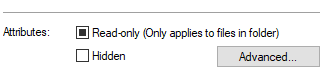
I had thought about read/write. I made sure the box was unticked on my VeryVanilla directory, but I'm seeing this morning after a PC restart that it's back. No idea how to get that to stick.

Just added the VV directory to my antivirus whitelist as well.

1755702557493.png

Interestingly there's no MQ2AutoLogin.ini in my config folder (I saw this file referenced in some posts in this thread). It's saving my Character and Profile groups just fine though so not sure where the hotkeys would be saved other than an .ini (sorry I'm not smart).

A friend just pointed out that I had been adding the hotkeys from the character list (by pressing the ... elipses) instead of assigning them from the profile group. I will try this and report back once servers/MQ are up.
 
I had thought about read/write. I made sure the box was unticked on my VeryVanilla directory, but I'm seeing this morning after a PC restart that it's back. No idea how to get that to stick.

Just added the VV directory to my antivirus whitelist as well.

View attachment 71198

Interestingly there's no MQ2AutoLogin.ini in my config folder (I saw this file referenced in some posts in this thread). It's saving my Character and Profile groups just fine though so not sure where the hotkeys would be saved other than an .ini (sorry I'm not smart).

A friend just pointed out that I had been adding the hotkeys from the character list (by pressing the ... elipses) instead of assigning them from the profile group. I will try this and report back once servers/MQ are up.

Confirmed I was putting my hotkeys under the Character panel instead of the Profile panel. My hotkeys are persisting after putting them in under each character in Profiles. Sorry for spamming up the channel :angel:
 
Wrong forum
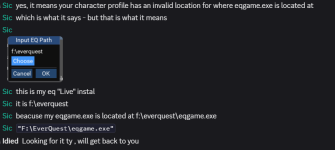
the old interface or whatever you wanna call it was easier to use when creating accounts and adding characters. i've tried every way i know how to type in the path to get it to work and it keeps saying that it doesnt exist. any suggestions?
 
You should be able to click in the empty box and it should make a drop down menu that has options for you to select your path. (it's not super intuitive, but it does save your path)
 
i did that and for some reason it keeps saying its not there when i try to auto login the group. its like eq doesnt exist or just isnt recognizing the path
 
Each resource on RG has an Overview / Discussion Thread and either a link to their wiki or tabs with FAQ, Commands, Etc.
Please make sure to post in the respective discussion thread, and check the FAQ/Commands/Wiki for information before posting.
 
i did that and for some reason it keeps saying its not there when i try to auto login the group. its like eq doesnt exist or just isnt recognizing the path
you're probably adding the eqgame.exe instead of what it is asking - which is the folder location

example from discord

1757018975354.png
 
c:\users\public\daybreak game company\installed games\everquest\launch pad ??? is that right? minus the ???? after launch pad

the old interface or whatever you wanna call it was easier to use when creating accounts and adding characters. i've tried every way i know how to type in the path to get it to work and it keeps saying that it doesnt exist. any suggestions?
it's a general question. i thought i was posting in the right spot
 
it's a general question. i thought i was posting in the right spot
autologin discussion thread would be the correct location for an autologin discussion (i merged it there), which was the point me of sharing that blurb - to let you know resources all have discussion threads
 
Attempting to get MQ2AutoLogin to work with ISBoxer. I do not see MQ2AutoLogin.ini anywhere. Any help would be appreciated.

I am able to get MQ2AutoLogin to work without ISBoxer.
 
there is no .ini

launch a profile with autologin then check the command line arguments in task manager. use those command line arguments to launch through isboxer. should look like /login:<something>
 
Release AutoLogin (core plugin)

Users who are viewing this thread

Back
Top
Cart