

This is just an EQ tip that might help some people. As you gain levels and get more buttons (and make more and more use of macroquest!), people add more rows of hotkeys. You can keep adding more and more but I prefer to keep the screen clear as possible so I just have 4, but I filled them pretty quickly. So my hotkeys looked like this:
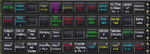
With default EQ settings, if you press Shift and then the number keys, you can tab to new pages, but as default that shift+number will only control the first (bottom) hotkey bar. So pressing Shift2, it looks like this:
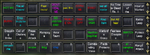
In other words it is all the same except for that bottom row now has a new page with some different hotkeys in there. But a better option is to change the key for all those other hotkey rows to be activated by the same shift + number keys. So when you do shift 2, it changes all 4 of those hotkeys to page 2. And shift 3 changes all hotkeys to page 3, etc.
To do this, go to your key settings, and in the dropdown, you click on the Hotbar options. The first hotbar we can leave the same, that will look like this:
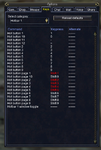
But yours will all be white and no red bits (yet). What you want to do is copy that setup for each of the other hotbars in the dropdown at the top. And do it for however many hotbars you use. So for example, hotbar 2 should be like this:
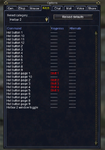
The red just means it is being shared by multiple things, but that is what we want. Hope this makes sense and is useful to someone.
p.s. Related to this topic, this plugin is really cool:
https://www.redguides.com/community/resources/mq2mybuttons.145/
It adds an extra row of buttons which you can assign any command to. It is similar to just adding a new row of hotkeys, but the advantage is that you can add massive commands in there, but also it is not affected by global cooldowns! This is quite a big deal because if you are casting a spell or melee ability, then any hotkey you click will not work while that is happening. Even MacroQuest commands will not trigger. So with the buttons plugin you can put time critical commands on there that will trigger right away no matter what your character is doing.
With default EQ settings, if you press Shift and then the number keys, you can tab to new pages, but as default that shift+number will only control the first (bottom) hotkey bar. So pressing Shift2, it looks like this:
In other words it is all the same except for that bottom row now has a new page with some different hotkeys in there. But a better option is to change the key for all those other hotkey rows to be activated by the same shift + number keys. So when you do shift 2, it changes all 4 of those hotkeys to page 2. And shift 3 changes all hotkeys to page 3, etc.
To do this, go to your key settings, and in the dropdown, you click on the Hotbar options. The first hotbar we can leave the same, that will look like this:
But yours will all be white and no red bits (yet). What you want to do is copy that setup for each of the other hotbars in the dropdown at the top. And do it for however many hotbars you use. So for example, hotbar 2 should be like this:
The red just means it is being shared by multiple things, but that is what we want. Hope this makes sense and is useful to someone.
p.s. Related to this topic, this plugin is really cool:
https://www.redguides.com/community/resources/mq2mybuttons.145/
It adds an extra row of buttons which you can assign any command to. It is similar to just adding a new row of hotkeys, but the advantage is that you can add massive commands in there, but also it is not affected by global cooldowns! This is quite a big deal because if you are casting a spell or melee ability, then any hotkey you click will not work while that is happening. Even MacroQuest commands will not trigger. So with the buttons plugin you can put time critical commands on there that will trigger right away no matter what your character is doing.

