


nyghteyes
What is a macro??
- Joined
- Mar 21, 2006
- RedCents
- 1,357¢
I'm writing this to share the simplicity and ease of use of this to edit your ini files.
We will edit some kissassist files for an example.
There are many pieces of the ini's that are not tied to slash commands in kissassist and need to be edited in the ini file.
Go to notepad-plus-plus/ and download the free program.
NOTE: This software is AD and Malware free, it has been around a long time.
This program totes a few features that I will focus on as we are not looking to code but just edit.
VISUAL PREFERENCES
_______________________________________________________________________
This section is just a preference and you dont need to do it to use the rest of the guide.
Once installed we are going to tell it how to understand our files first so we can get some pretty color coding to make it easier on the eyes.
Go to Setting > Preferences
File association Tab
"Customize" in the (Supported exts column
Type in "ini" and click ->
Type in "mac" and click ->
Then click "close"
This now will show you closed brackets and match highlighted text.

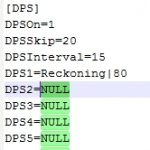
If you want to add the color coding for writing/editing macros after associating the file see Playj's link to the wiki below.
Initial configuration is now complete and though it doesn't affect the next part of the guide it will help you in the future find things in file like the Loot.ini if you highlight "Keep" it will highlight all the other "Keep" texts in the file.
EDITING MULTIPLE FILES
_______________________________________________________________________
So now your at camp and decide you want to make a change across all your toons but there is no slash command to do so....OMG I have to go change all the file individually?!?!?! UGH....NOPE!
For an example, we will use "ClickBacktoCamp=" as our character wide change.
Open all of the kissassist.ini files. NP++ will use tabs just like Chrome does.

Highlight ClickBacktoCamp= and press Ctrl+C to copy
then
Ctrl+F or click "Search" on the top bar > Find...
Move over to the "Replace" Tab of the search window
The highlighted text will already be in the "Find what:" field but most likely not in the "Find in files" section of the Replace Tab.
Paste it in the "Find what:" field and in the "Replace with:"
You will then change the Replace with "=0 to =1"
It should look like :
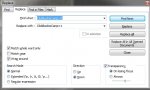
click "Replace All in All Opened Documents"
You will see a dialogue window tell you how many occurrences were replaced.
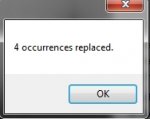
Click "Save all" at the top to save all open documents.

_______________________________________________________________________
There are a ton of other features this program has to offer but I hope this intro helps you make your editing time easier, I know it has for me.
-Nyght
We will edit some kissassist files for an example.
There are many pieces of the ini's that are not tied to slash commands in kissassist and need to be edited in the ini file.
Go to notepad-plus-plus/ and download the free program.
NOTE: This software is AD and Malware free, it has been around a long time.
This program totes a few features that I will focus on as we are not looking to code but just edit.
VISUAL PREFERENCES
_______________________________________________________________________
This section is just a preference and you dont need to do it to use the rest of the guide.
Once installed we are going to tell it how to understand our files first so we can get some pretty color coding to make it easier on the eyes.
Go to Setting > Preferences
File association Tab
"Customize" in the (Supported exts
columnType in "ini" and click ->
Type in "mac" and click ->
Then click "close"
This now will show you closed brackets and match highlighted text.
If you want to add the color coding for writing/editing macros after associating the file see Playj's link to the wiki below.
Initial configuration is now complete and though it doesn't affect the next part of the guide it will help you in the future find things in file like the Loot.ini if you highlight "Keep" it will highlight all the other "Keep" texts in the file.
EDITING MULTIPLE FILES
_______________________________________________________________________
So now your at camp and decide you want to make a change across all your toons but there is no slash command to do so....OMG I have to go change all the file individually?!?!?! UGH....NOPE!
For an example, we will use "ClickBacktoCamp=" as our character wide change.
Open all of the kissassist.ini files. NP++ will use tabs just like Chrome does.
Highlight ClickBacktoCamp= and press Ctrl+C to copy
then
Ctrl+F or click "Search" on the top bar > Find...
Move over to the "Replace" Tab of the search window
The highlighted text will already be in the "Find what:" field but most likely not in the "Find in files" section of the Replace Tab.
Paste it in the "Find what:" field and in the "Replace with:"
You will then change the Replace with "=0 to =1"
It should look like :
click "Replace All in All Opened Documents"
You will see a dialogue window tell you how many occurrences were replaced.
Click "Save all" at the top to save all open documents.
_______________________________________________________________________
There are a ton of other features this program has to offer but I hope this intro helps you make your editing time easier, I know it has for me.
-Nyght
Last edited:
