
• Hail, we're RedGuides. We want you to play six (yes, 6!) EverQuest characters at once. We have scripts and a friendly community to help, please join our playstyle and say hello! 👋
  • We've added LLM sections to our Terms & Rules and Resource Rules, for everyone's sanity & in-game safety.
    Read more
    a. Do not replace your voice with an LLM. This goes for your posts and your scripts. Drafting and editing with a tool is fine, but don't take you out of what you share.
    b. Do not replace your EQ character's voice with an LLM. We don't want scripts that speak over /ooc, /shout or other public channels. This has been an unwritten rule that's kept casino scripts off the site for decades, but we're now compelled to make it clear: keep automated communication private.

    Why Does RG Review Scripts?
    Nearly every LLM-written Lua script we see is making your character do impossible things, and rarely in a way that's beneficial to you. We've seen heavy server hammering, /target over impossible distances when /nav spawn would passively accomplish the same thing, a spawn search that fires 20+ times per second, and other pointless actions that are likely annoying GMs.

    You are welcome to use LLMs as a tool to structure, draft, and edit your work, but please read critically before hitting /lua run

Macro editing tip - matching braces

Meeply

Member
Small tip now that I have started creating, editing and reading macros.

I use Visual Studio to edit macro files. Any version from at least VC++ 6.0 up to the latest version of VS has one very nifty feature that I have used for many years to help read or prevent (, {, [ matching errors.

If you put the caret on one of these symbols, the editor will match it up the corresponding one if it can. To find or check the matching ( or ) for example, just use the keys or mouse to put the caret directly in front of or behind the brace/paren you want to match and press Ctrl-] (that's Control end square brace.) If it can find a matching one it will move the caret to the matching one. This works for both opening and closing "brackets/braces/parens". Hitting that key combination again will put you back where you started.

I'm not saying VS is the absolute best editor out there. I have seen others that can highlight and color various text and syntax, but if you use VS anyway, it's a very nice tool to have.

Good luck!
 
You can achieve the same results using Notepad++ with a few settings. Personally, I use my own language file with a function list setting (provided by CTaylor to me) along with a series of custom color settings.

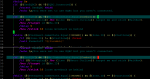
Matching Brace.png
 
In notepad++ top bar click on

Settings ~> Style Configurator to get the color settings window.


Language: Global Styles and Style: Global Override
change the background to black/dark color of your choice to go with the color scheme.


Language: Global Styles and Style: Default Style
Foreground: Dark Orange
Background: Black


Language: Global Styles and Style: Indent Guideline
Foreground: Grey
Background: White

Language: Global Styles and Style: Brace Highlight Style
Foreground: Black
Background: Neon Green

Language: Global Styles and Style: Bad Brace Color
Foreground: Light Yellow
Background: Red

Language: Global Styles and Style: Current Line Background
Foreground: ------
Background: Dark blue? Pick a color that is lighter than the background, but goes well with the color scheme.

Language: Global Styles and Style: Indent Guideline
Foreground: -----
Background: Medium Blue

Language: Global Styles and Style: Caret Color
Foreground: Purple
Background: ----

Language: Global Styles and Style: Edge Color
Foreground: Sky Blue
Background: ----

Language: Global Styles and Style: Line Number Margin
Foreground: Grey
Background: Black

Language: Global Styles and Style: Smart Highlighting
Foreground: ----
Background: Light Purple


Should be the only changes that need to be made.
 
Yes but you can't debug in Notepad++ no matter how pretty it looks. :)

I also believe VS is configurable for colors, spacing. indenting and even help lookup functions that could refer back to the MQ2 wiki's appropriate page if someone wanted to do that work. Like I said, wasn't necessarily the best editor (without the customizations) but for those that do use it, here's a trick.
 
Macro editing tip - matching braces

Users who are viewing this thread

Back
Top
Cart