• Hail, we're RedGuides. We want you to play six (yes, 6!) EverQuest characters at once. We have scripts and a friendly community to help, please join our playstyle and say hello! 👋
  • We've added LLM sections to our Terms & Rules and Resource Rules, for everyone's sanity & in-game safety.
    Read more
    a. Do not replace your voice with an LLM. This goes for your posts and your scripts. Drafting and editing with a tool is fine, but don't take you out of what you share.
    b. Do not replace your EQ character's voice with an LLM. We don't want scripts that speak over /ooc, /shout or other public channels. This has been an unwritten rule that's kept casino scripts off the site for decades, but we're now compelled to make it clear: keep automated communication private.

    Why Does RG Review Scripts?
    Nearly every LLM-written Lua script we see is making your character do impossible things, and rarely in a way that's beneficial to you. We've seen heavy server hammering, /target over impossible distances when /nav spawn would passively accomplish the same thing, a spawn search that fires 20+ times per second, and other pointless actions that are likely annoying GMs.

    You are welcome to use LLMs as a tool to structure, draft, and edit your work, but please read critically before hitting /lua run

HELP

Ideas:

A) Right click on the file. Click "Run as Administrator"
B) Turn off antivirus
C) Make sure you have enough HDD space
D)
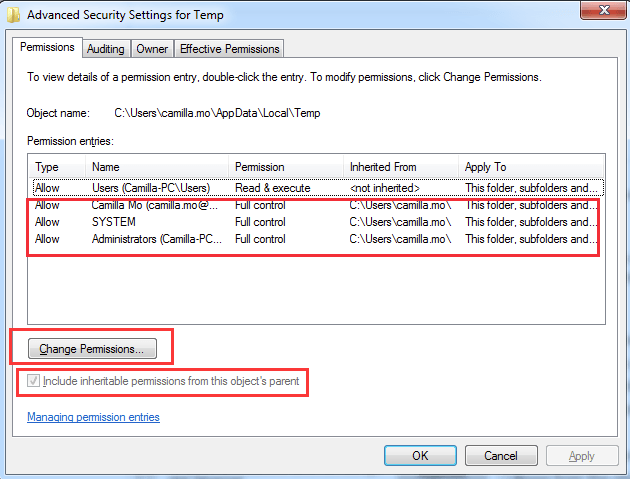
Navigate to C:\Users\[Username]\AppData\Local.
Right click on the Temp folder. Choose Properties.


Click the Security tab and click Advanced.


On the Permissions tab you should see permissions that are there. 3 permissions below you will see: ‘SYSTEM‘ with Full control which applies to ‘This folder, subfolders and files’ ‘Administrators‘ with Full control which applies to ‘This folder, subfolders and files’ ‘YourUsername‘ with Full control which applies to ‘This folder, subfolders and files’ These all 3 permissions should be inherited from the C:\Users\[Username]\ folder. If you don’t have the ‘Include inheritable permissions from this object’s parent’ option ticked, click on Change Permissions….


Tick the box next to ‘Include inheritable permissions from this object’s parent’. Then click Apply and OK buttons. Click Continue if there are any problems, then remove the permissions that aren’t inherited.


After you follow steps above, you should have the permissions to write to the directory and you won’t get those error messages any more.


E) Hit Ctrl-Alt-Del and if you see a task name something like Consent Manager UI, highlight it and click End Task.
 
You type %appdata% instead of the path he told you. That should get you to the right spot even if you installed Windows elsewhere or didn't put your username right in the address.
 
HELP

Users who are viewing this thread

Back
Top
Cart