- Source Repository
- https://github.com/m0rg/pricecheck
EverQuest MacroQuest PriceCheck
An in-game market checking, bulk inventory evaluation, and sales broadcasting assistant for EverQuest Time-Locked Progression (TLP) servers, built for the MacroQuest Lua Sandbox.
AI-Assisted Development
Intent & Core Purpose
PriceCheck acts as your personal merchant companion in EverQuest. It connects directly to live progression market API endpoints (tlp-auctions.com) to evaluate item values, log user tells, and automate broadcast marketing (/auction) with human-like timing delay debounces. It ensures you never undersell valuable loot to NPC merchants or buy items at inflated prices.
Key Features
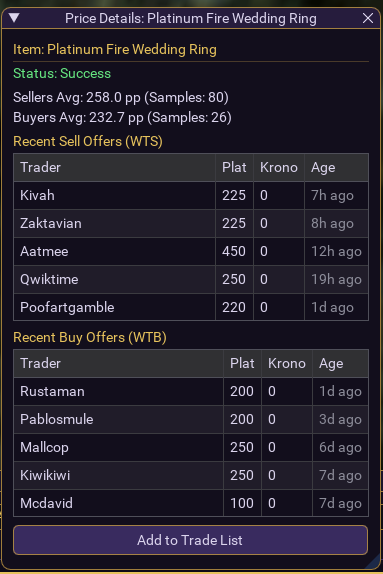
- Appraisal Drop Slot & Command Queries: Drag items to the in-game Drop Slot or query them with commands to open a detailed floating statistics window containing live analytics (Average WTS/WTB, High/Low WTS/WTB, and sample counts) along with recent transaction logs.
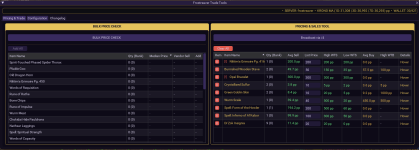
- Bulk Inventory Scanner: Instantly inventory and evaluate all items in your character's active bags on demand. The scanner matches item IDs against the server database, identifies item values, and warns you in gold when an NPC merchant is willing to pay more than the player-to-player market median!
- Trade Queue Manager: Collect, view, and organize items you wish to sell. Includes editable listed price boxes (auto-calculated and rounded based on averages), warning flags
[!]for thin statistical sample sizes, and detailed transaction tooltips. - Cursor Integration: Right-click any item in your active trade queue, and the script automatically picks up that item from your inventory to your cursor, eliminating tedious bag searches.
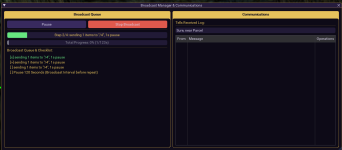
- Anti-Flood Broadcasting Queue: Compiles multi-item
/auctionlines (grouping up to 4 items per line with quantities and price links). A live timeline dashboard schedules 1-second line-send pauses, a 60-second anti-spam delay after every 5 lines, and custom interval loops to prevent client rate-limits or server chat bans. - Smart Tells Logger & Interest Matcher: Logs incoming customer tells in a clean tab. The message text is dynamically parsed against your active trade list. If a client mentions a listed item, the logger highlights their interest, displays your listed plat price, and calculates the exact sum total to expect in the trade window.
- Visual Theme Customization: Features a styling suite supporting 6 presets (Default, Solarized Dark, Nord, Pastel, Solarized Light, and Windows 95) that adapt beautifully to your personal UI setup.
- Resilient Data Persistence: Configuration settings and listing histories are pickled and saved to your MacroQuest directory automatically, ensuring you never lose your setup between sessions.
The User Flow: A Step-by-Step Walkthrough
1. Initialization and Setup
- Launch the script in-game with the command:
Code:
/lua run pricecheck - The script checks for the required dependency
MQ2LinkDB. If missing, it dynamically loads it via/plugin MQ2LinkDBto ensure color-coded item links can be generated. - The main GUI window Frostreaver Trade Tools opens, loading your previously saved configuration and trade list from storage.
2. Sizing Up Your Stock (Item Appraisal)
You have three methods to price and add items to your list:- The Cursor Drop Slot: Pick up an item on your cursor. The top bar of the script changes from a placeholder warning to a clickable Click to Check: [Item Name] button. Click it to open the floating Price Details window.
- Slash Commands: Run
/pricecheck(for the item on your cursor) or/pricecheck <Item Name>(e.g.,/pricecheck Fire Beetle Eye). This queries the API and opens the details window.
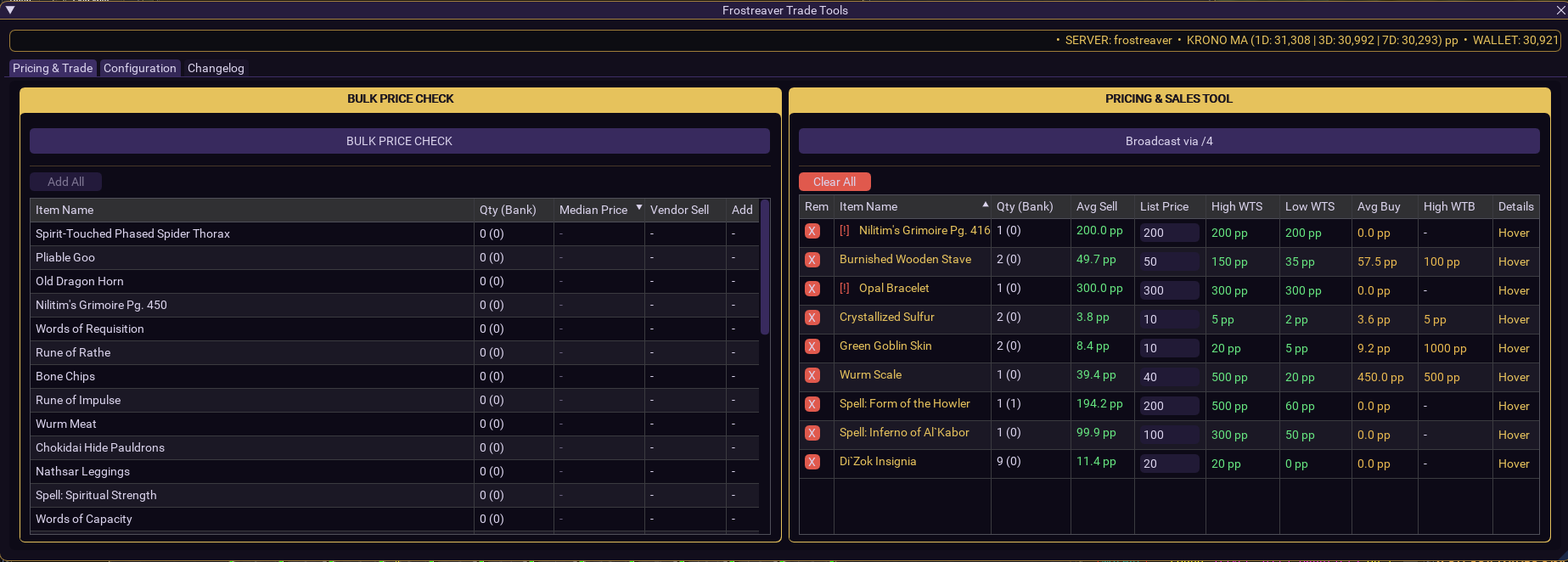
- Bulk Inventory Scanning: Navigate to the Your Items tab and click BULK PRICE CHECK. The script scans your worn bags (slots 23 to 34) for unique items, bundles them, and checks them in batches.
- If the lookup succeeds, a sortable table updates with quantities, bank counts, median market prices, and NPC merchant values.
- Vendor Profit Alert: If an item's NPC merchant value exceeds or equals the player market median price, the item name glows Gold and displays a tooltip: "Vendor sell price is higher or equal to market median price!". This tells you to sell it to an NPC instead of listing it to players.
- Click the
+button on any item to add it to your broadcast list. (If the item has no market history, the+button turns red, adding it using your configured fallback price). - Click Add All to add all checked items with active prices in one go (hover to see estimated query durations).
3. Setting Up the Trade List (The "Trade" Tab)
- Once items are added, they populate the History / Price History table on the Trade tab.
- Quantity Rechecks: Click Recheck Qty to update the carried and banked count values.
- Price Adjustment: The script auto-calculates a listing price based on market averages and rounds it for clean formatting (rounded to the nearest 10 for prices $\le$ 100, nearest 50 for prices $\le$ 1000, and nearest 100 for prices > 1000). You can click directly in the List Price input field to adjust the plat price manually.
- Reviewing Pricing Spread: Review columns for Average Sell, List Price, High WTS, Low WTS, Average Buy, and High WTB.
- Details Tooltip: Hover over the Hover link in the Details column to see a pop-up transaction table of the 5 most recent WTS and WTB player sales, showing character names, plat values, Krono rates, and relative time ages (e.g., "5m ago").
- Grab Item to Cursor: Right-click the name of any item in the history table. The script uses
/itemnotifyto automatically pick up the item and place it on your cursor, letting you grab it out of your bags instantly when completing a trade.
4. Running the Sales Broadcast
- Review the Queue Preview inside the Timeline Checklist scroll area on the Trade tab. It formats WTS lines, grouping up to 4 items on a single line to minimize chat footprint, incorporating colorized game links when broadcasting.
- Example line:
/auction WTS 2x [Golden Fire Opal Ring] 100 pp, [Fire Beetle Eye] 10 pp
- Example line:
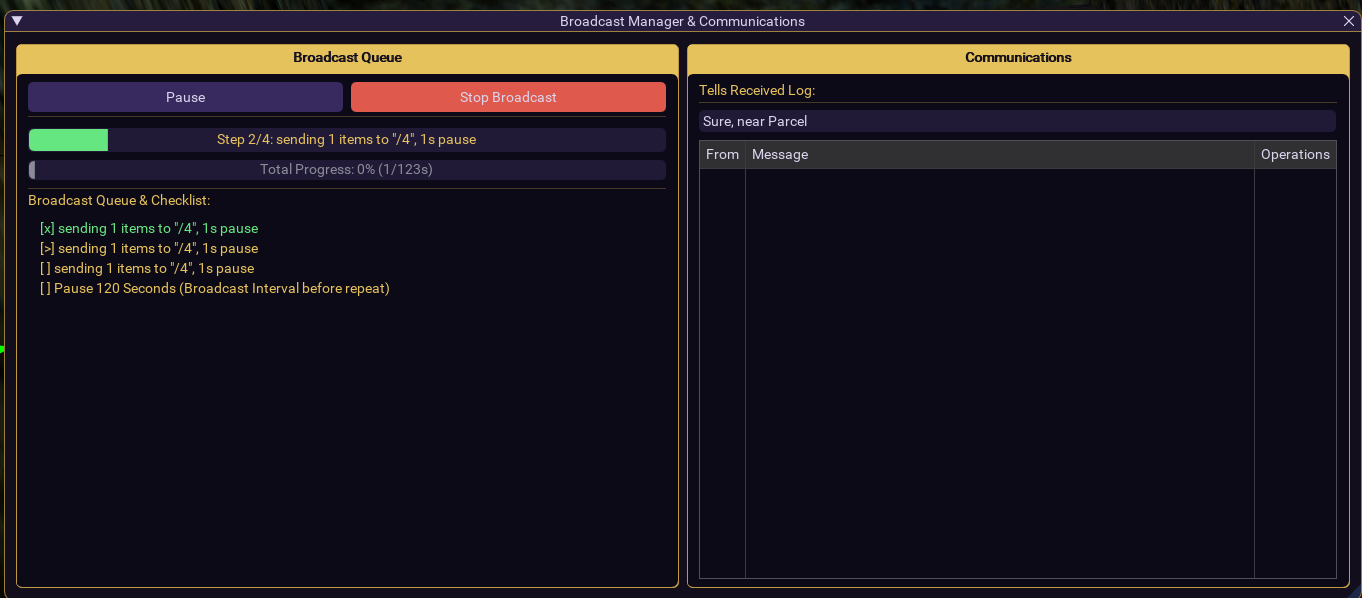
- Click the Broadcast via [Channel] button. The script transitions into live broadcasting mode:
- A green Current Step Progress Bar animates, tracking the countdown of active chat sends (1s pause) or anti-spam delays (60s pauses).
- A grey Total Cycle Progress Bar displays the overall time percentage completed in the current cycle loop.
- Adjust listing prices on the fly or click Stop Broadcast at any time to freeze the loop.
Code:
graph TD
A[Prepare Trade List] --> B[WTS Line Construction: Batch 4 Items Max]
B --> C[Loop: Send WTS Line]
C --> D[1s Delay between lines]
D --> E{5 Lines Sent?}
E -- Yes --> F[60s Anti-Spam Pause]
E -- No --> G{More Lines?}
F --> G
G -- Yes --> C
G -- No --> H[Wait Broadcast Interval e.g. 120s]
H --> A
5. Managing Transactions (The "Communication" Tab)
- When a customer sends you a direct message, it bypasses your chat log spam and registers under the Communication tab.
- Interest Highlights: The tell logger scans the message text. If the buyer mentions one of your listed items, a green alert message is printed:
- Example:
(interested in "Golden Fire Opal Ring" for 100 pp, expect a total of 100 pp in the Trade Window!) - If they mention multiple items, it sums them up automatically!
- Example:
- Quick Replies: Enter a response template in the input box (e.g.,
"Sure, near Parcel"). Click Reply next to the customer's name to instantly send them that tell. - Clearing Completed Transactions: Click the V (Done) button next to the customer's entry to remove them from the queue.
Configuration Dashboard
Customize your trading flow under the Configuration tab:
Setting | Type | Default | Description |
|---|---|---|---|
Low Sample Size Warning Limit | InputInt | 5 | The sample threshold below which a red [!] warning icon is shown on listings. |
Default Reply Message | InputText | Sure, near Parcel | The message text sent when clicking the quick Reply button in tells. |
Broadcast Interval (seconds) | SliderInt | 120 | Cooldown period between completing a WTS cycle and starting the next (120s - 1200s). |
Default Item Price (pp) | InputInt | 1000 | The fallback plat price assigned to items with no online statistics when added. |
Chat Channel / Command | InputText | /auction | The command prefixed to broadcast lines (e.g. /auction, /shout, /gu). |
UI Color Theme Preset | Combo | Default | Visual color profile styles (Default, Solarized Dark, Nord, Pastel, Solarized Light, Windows 95). |
Enable Debug Logging | Checkbox | false | Outputs active state changes and API request responses to the console. |
Installation & Directory Setup
- Subscribe to the resource and not bother.
- Copy the
pricecheckfolder structure directly into your MacroQuest directory:Code:<MacroQuest_Directory>/lua/pricecheck/ - Confirm the directory contains the following structure:
Code:
pricecheck/ ├── init.lua ├── instructions.md ├── README.md └── modules/ ├── char.lua ├── chat.lua ├── dto.lua ├── http.lua ├── log.lua ├── state.lua ├── storage.lua ├── theme.lua ├── ui.lua └── util.lua - Boot up the EverQuest client and start the Lua script:
Code:
/lua run pricecheck