
The repository:
https://gitlab.com/redguides/kissassist
The development branch:
https://gitlab.com/redguides/kissassist/tree/development
The issue board (please add bugs and feature requests you find elsewhere)
https://gitlab.com/redguides/kissassist/-/boards/1445696
 Why should I use Git
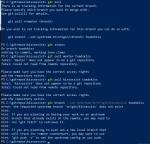
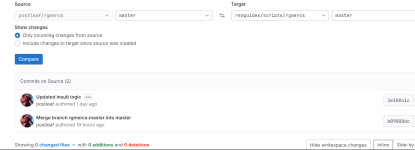
Because of situations like this,

At RedGuides we've only been using git for two years, but even with my relative newbie understanding, it's giving the entire community some serious benefits such as:
We can quickly see the modifications people have made:
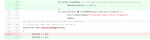
via: https://gitlab.com/redguides/VeryVanilla/commit/7bdafb3b5cb6bd5d32c4fdd610371a9858ab020c
We can see the entire history of any file,
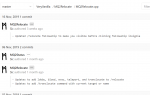
via: https://gitlab.com/redguides/VeryVanilla/commits/master/MQ2Relocate/MQ2Relocate.cpp
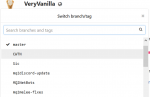
You get a branch: your own offline copy of the project, and you can share it for review and automatic merging.
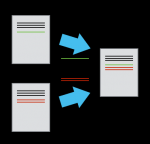
With branches, you and a friend can work on the same file and automatically merge when done:
It's version control that's made for sharing, so let's use it!
 Setting up your repo for KissAssist
 Using your branch for KissAssist
If you want a GUI (which I don't recommend for new users as it's going to confuse you with options) search for "Git Gui" on your PC, it's already installed from step 1. There are many GUI alternatives if it doesn't suit you. If you want to stick with powershell, I recommend posh git (follow the install steps carefully, as well as the first two steps of "usage") it gives you tab completion, as well a handy status bar built into the commandline.
This thread also serves as a dumpster for random git questions, so ask away!
https://gitlab.com/redguides/kissassist
The development branch:
https://gitlab.com/redguides/kissassist/tree/development
The issue board (please add bugs and feature requests you find elsewhere)
https://gitlab.com/redguides/kissassist/-/boards/1445696
Why should I use GitBecause of situations like this,
At RedGuides we've only been using git for two years, but even with my relative newbie understanding, it's giving the entire community some serious benefits such as:
We can quickly see the modifications people have made:
via: https://gitlab.com/redguides/VeryVanilla/commit/7bdafb3b5cb6bd5d32c4fdd610371a9858ab020c
We can see the entire history of any file,
via: https://gitlab.com/redguides/VeryVanilla/commits/master/MQ2Relocate/MQ2Relocate.cpp
You get a branch: your own offline copy of the project, and you can share it for review and automatic merging.
With branches, you and a friend can work on the same file and automatically merge when done:
It's version control that's made for sharing, so let's use it!
Setting up your repo for KissAssist- Download Git and begin to install: https://git-scm.com/downloads
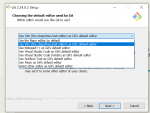
- One of the last install prompts asks which editor you'd like to use. If you're not familiar with Vim (why is this default for Windows users?) then use VS Code or Notepad++,
- After install, navigate to a folder you'd like to keep your repositories.
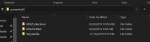
- Type "powershell" in the folder bar and hit enter:
- In the powershell window, type
git clone https://gitlab.com/redguides/kissassist.git
(if you need access, PM @Redbot or @ctaylor22)
- Now let's make a branch (your own personal copy) where you're free to mess things up. Type
cd kissassistto navigate inside the newly made kissassist folder, and type:
git pull(This makes sure you’re up to date, if you just cloned you don’t need to do this)
git branch mydevbranch(it's a good idea to name your branch for whatever you're working on. If you're adding bard song checks, name the branch something like "bardsongchecks")
git checkout mydevbranch(this puts you on your branch)
git branch(use this to check what branch you're on. The * should be beside the branch you just created)
- To keep things organized on your PC, I recommend a different folder for each branch. Feel free to copy and rename the "kissassist" repository folder, it won't break anything.
Using your branch for KissAssist- Edit that macro! When you're done with an edit, commit your changes (locally) with the following lines,
git statusCheck to make sure everything looks right, branch, file you changed, etc.
git add .This adds all the changes you made, including any new files.
git commitThis is where you explain what changed. Remember to save! (If you're in a weird text editor that's confusing, it's probably VIM. Look up some commands )
) - When you're ready to put your commits on the server, type
git push --set-upstream origin mydevbranchThis uploads the changes to your branch on the server.
- If you think the code in your personal branch is ready for the development or master branch, submit a merge request for @ctaylor22 to approve.
The easiest way to submit a merge request (some call it a "pull request", same thing) is do it on the website:
https://gitlab.com/redguides/kissassist/merge_requests/new
Select a source branch, a target branch, and hit merge.
If you want a GUI (which I don't recommend for new users as it's going to confuse you with options) search for "Git Gui" on your PC, it's already installed from step 1. There are many GUI alternatives if it doesn't suit you. If you want to stick with powershell, I recommend posh git (follow the install steps carefully, as well as the first two steps of "usage") it gives you tab completion, as well a handy status bar built into the commandline.
This thread also serves as a dumpster for random git questions, so ask away!
Last edited: