
W
Wolfborn
I've seen a lot of posts lately on problems with MQ2Navigation.
I'm not an expert on it but I've come to a few conclusions and developed a few guide lines that have helped me to get MQ2Navigation working good with my teams.
First problem I uncovered was "No starting reference" or something like that.
It happened in Crescent Reach and I didn't have a clue about it so I started digging.
How to start and use MQ2Navigation.
MQ2Navigation is a program to overlay zone files with a grid of numbers (mesh) to allow characters to auto-navigate either through a defined path (don't ask me how to do that) or through a command to "navigate to". Using the numbers in the file the character can navigate around corners, down tunnels, up stairs etc.. on it's way to the target.
1. Open Mq2Navigation.
The file is located in the root /macroquest2 folder. The file is "EQNavigation.exe", not to be confused with MQ2Navigation which is the actual plugin.
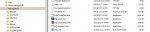
Just double click it to bring up the MQ2Navigation window. From experience I'm going to recommend that you kill all other programs running on your PC before you start MQ2Navigation. I'm not sure what language it was coded in but it's a hog. I recommend going full screen when using it (ALT+Enter)
2. Set the folders.
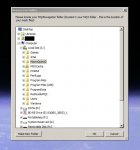
Before you do anything else, hit the TAB key to bring up the folder selection routine. This only needs to be done once so if you've already gone through it then you don't need to do it unless you want to change source and/or destination folders. When asked to find the MQ2 Folder, be sure and select the root folder, /macroquest2, and not the MQ2Navigation folder, /macroquest2/MQ2Navigation. The software automatically finds or creates the /MQ2Navigation folder.
3. Select the zone you want to render.
Click on the words "Choose Zone..." to bring up the zone selection fly out. Word of advice. They are not real buttons but more like sensitive areas that respond to mouse clicks. They are flaky and often need to be clicked several times as well as moving the mouse around to find the sweet spot. This becomes worse when you have a big zone loaded or have already processed a few zones. If it becomes too bad. Shut down and restart the program. If that doesn't help, reboot the computer. (My system is pretty healthy. i7-3930 at 4.2ghz, 32gigs RAM, 2x SSD in Raid 0, 2x GTX680 and it still get's very sluggish after rendering a zone)
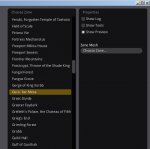
In my example I'm going to render Goru'Kar Mesa as it's a common zone and quite large.
After you've selected your zone it will render on your screen and look like this:
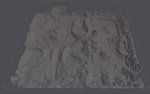
At this point you've got a 3D render of the zone. You can use the W-S-A-D keys along with the mouse (hold RMB) to fly through the zone. It takes a little to get used to the movement but you can fly in and around all things in the zone, fly down tunnels, into buildings etc.. Use the "SHIFT" key to go in to turbo mode while flying. I typically fly through zones I'm not familiar with to get an idea of the layout, where to turn, what tunnel to take to get where I'm going etc.. (you can fly after you render the zone too. It's even more helpful then)
4. Create the Mesh.
Here is where the program will generate the "mesh" or data that the plugin will use to navigate your character.
After you select the zone and it get's rendered you will notice some controls pop up on the right side. Like I said, I'm not an expert and I can't tell you what each control does. I do know that the two we need to be concerned with are "Cell Size" and "Tile Size"
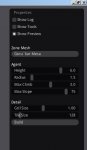
To get the mesh to render we will push the "Build" button but first we need to adjust the Detail. The Cell and Tile size. Here is where I think many people get it wrong. I see the settings mentioned "Cell Size 0.50 and Tile Size 64" as the holy grail.
If I render Goru'Kar Mesa with those settings this is what I get.
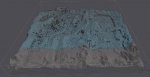
Notice how the blue mesh does not cover the entire zone but the render cursor is at the very low right corner? This is why I was getting "No starting reference" when I had my group in that zone. My puller wouldn't pull or would run out, tag the mob and not be able to get back while spamming "No starting reference" (or what ever that phrase is, I'm sure you've seen it)
I began experimenting and wound up with settings of Cell Size = 0.50 and Tile Size = 128 and this is what the zone render looked like.
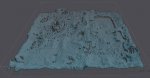
The entire zone is covered in the blue mesh and I didn't get any more "No starting reference" problems.
5. Save the file.
Once you have the blue mesh covering the zone using the lowest possible numbers for that zone it's time to save the file.
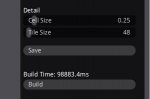
On the right in the controls section there is one button labeled "Save". I know, pretty self explanatory but again, it's a little flaky. Click it but before you close the window, navigate to your /macroquest2/MQ2Navigation folder and check if there is a .bin file of your zone, in this case, Goru'Kar Mesa bin file (mesa.bin) right near the mesa.ncr file.
If not then return to the MQ2Navigation window and click again. Same as the Build button, you may have to move and click to find the sweet spot.
I'm not exactly sure what the .ncr file is but I noticed that if MQ2Navigation can't find the .bin file it will load the .ncr file. If it can't find the .bin file it will not give you all the neat features of MQ2Navigation so I think without the .bin file loaded, your wasting time loading MQ2Navigation. Anyway... as you can see the mesa.bin file is much larger than the mesa.ncr file. Mine came in at 33megs where as the .ncr file is only 8 megs.
You're basically finished with the zone now and can close MQ2Navigation.
Tips:
1. MQ2Navigation is not like other plugins.
You may have an entry for it in macroquest.ini - Plugins section but it will not load. It has to be loaded on each character via macro or via hot key.
My KISS hot key for my Puller is:
/plugin MQ2Navigation
/mac KissAssist Puller
This loads MQ2Navigation each time I run the macro. I don't load it on characters that don't need it, mainly the puller or the hunter if I'm in hunt mode.
On the flip side my Endmacro key is:
/endmacro
/nav stop
/stick off
/moveto stop
2. EQ crashes when I load MQ2Navigation in certain zones.
I ran into this in Oceangreen Village for the first time. I had just created the .bin file and it was 78megs. This didn't seem like a problem as I had other zones that were big. Roost.bin 78megs, Elddar.bin 69megs.
I redid the zone several times and it always crashed. Finally I reduced the Cell and Tile size. It wound up as 44megs and I was able to load without crashing. I don't think it was the size of the zone that caused it to crash. Maybe something was out of whack and increasing the Cell and Tile size covered it up. I don't know but it worked and that's all that matters in the end.
There may be other causes for a crash but this is the only one I've found so far.
3. My character gets stuck on rocks and junk even when I load MQ2Navigation! WTF????
Go back to the third (or after creating the mesh) step when the zone is first rendered. Fly through the zone, find the area where you are camped. Do you see all the rocks and trees in the rendered zone that you see in the played zone? If it's not in the rendered zone, MQ2Navigation doesn't know it's there and can't navigate around it.
Use the rendered zone, fly around and find a good camp spot that closely resembles the actual zone in the game. Rocks, trees etc.. Then your puller will do amazing things like run into tunnels, run into buildings and up stairs. In Ashengate the other day my puller would run around a big pillar, down a tunnel and into the next room. Pull something out of that room back through the tunnel and around the big pillar. Pretty cool to watch. At the start he would get hung on an outcrop of rock at the mouth of the tunnel. I moved the group to force him around a pillar and that set him up for a straight shot into and out of the tunnel.
4. Having fun.
Create the mesh for PoK. Zone into PoK. " /plugin MQ2Navigation load" then find a mob on the far side of the zone and "/nav target". Your toon should take off and navigate all the way to the NPC unless there is a doorway (there is some trick to doorways but I haven't tried it yet). My toon would go up stairs, over the archways and make his way to the NPC. It's useful in the Bazaar, target the vendor you want "/nav target" soon your standing in front of the vendor. Also a good way to see how hidden obstacles can stop your character.
It's pretty basic that's true.
Feel free to add tips and tricks, correct me if I'm wrong on something or add to the knowledge.
Knowledge is power!!
-Wolf
I'm not an expert on it but I've come to a few conclusions and developed a few guide lines that have helped me to get MQ2Navigation working good with my teams.
First problem I uncovered was "No starting reference" or something like that.
It happened in Crescent Reach and I didn't have a clue about it so I started digging.
How to start and use MQ2Navigation.
MQ2Navigation is a program to overlay zone files with a grid of numbers (mesh) to allow characters to auto-navigate either through a defined path (don't ask me how to do that) or through a command to "navigate to". Using the numbers in the file the character can navigate around corners, down tunnels, up stairs etc.. on it's way to the target.
1. Open Mq2Navigation.
The file is located in the root /macroquest2 folder. The file is "EQNavigation.exe", not to be confused with MQ2Navigation which is the actual plugin.
Just double click it to bring up the MQ2Navigation window. From experience I'm going to recommend that you kill all other programs running on your PC before you start MQ2Navigation. I'm not sure what language it was coded in but it's a hog. I recommend going full screen when using it (ALT+Enter)
2. Set the folders.
Before you do anything else, hit the TAB key to bring up the folder selection routine. This only needs to be done once so if you've already gone through it then you don't need to do it unless you want to change source and/or destination folders. When asked to find the MQ2 Folder, be sure and select the root folder, /macroquest2, and not the MQ2Navigation folder, /macroquest2/MQ2Navigation. The software automatically finds or creates the /MQ2Navigation folder.
3. Select the zone you want to render.
Click on the words "Choose Zone..." to bring up the zone selection fly out. Word of advice. They are not real buttons but more like sensitive areas that respond to mouse clicks. They are flaky and often need to be clicked several times as well as moving the mouse around to find the sweet spot. This becomes worse when you have a big zone loaded or have already processed a few zones. If it becomes too bad. Shut down and restart the program. If that doesn't help, reboot the computer. (My system is pretty healthy. i7-3930 at 4.2ghz, 32gigs RAM, 2x SSD in Raid 0, 2x GTX680 and it still get's very sluggish after rendering a zone)
In my example I'm going to render Goru'Kar Mesa as it's a common zone and quite large.
After you've selected your zone it will render on your screen and look like this:
At this point you've got a 3D render of the zone. You can use the W-S-A-D keys along with the mouse (hold RMB) to fly through the zone. It takes a little to get used to the movement but you can fly in and around all things in the zone, fly down tunnels, into buildings etc.. Use the "SHIFT" key to go in to turbo mode while flying. I typically fly through zones I'm not familiar with to get an idea of the layout, where to turn, what tunnel to take to get where I'm going etc.. (you can fly after you render the zone too. It's even more helpful then)
4. Create the Mesh.
Here is where the program will generate the "mesh" or data that the plugin will use to navigate your character.
After you select the zone and it get's rendered you will notice some controls pop up on the right side. Like I said, I'm not an expert and I can't tell you what each control does. I do know that the two we need to be concerned with are "Cell Size" and "Tile Size"
To get the mesh to render we will push the "Build" button but first we need to adjust the Detail. The Cell and Tile size. Here is where I think many people get it wrong. I see the settings mentioned "Cell Size 0.50 and Tile Size 64" as the holy grail.
If I render Goru'Kar Mesa with those settings this is what I get.
Notice how the blue mesh does not cover the entire zone but the render cursor is at the very low right corner? This is why I was getting "No starting reference" when I had my group in that zone. My puller wouldn't pull or would run out, tag the mob and not be able to get back while spamming "No starting reference" (or what ever that phrase is, I'm sure you've seen it)
I began experimenting and wound up with settings of Cell Size = 0.50 and Tile Size = 128 and this is what the zone render looked like.
The entire zone is covered in the blue mesh and I didn't get any more "No starting reference" problems.
5. Save the file.
Once you have the blue mesh covering the zone using the lowest possible numbers for that zone it's time to save the file.
On the right in the controls section there is one button labeled "Save". I know, pretty self explanatory but again, it's a little flaky. Click it but before you close the window, navigate to your /macroquest2/MQ2Navigation folder and check if there is a .bin file of your zone, in this case, Goru'Kar Mesa bin file (mesa.bin) right near the mesa.ncr file.
If not then return to the MQ2Navigation window and click again. Same as the Build button, you may have to move and click to find the sweet spot.
I'm not exactly sure what the .ncr file is but I noticed that if MQ2Navigation can't find the .bin file it will load the .ncr file. If it can't find the .bin file it will not give you all the neat features of MQ2Navigation so I think without the .bin file loaded, your wasting time loading MQ2Navigation. Anyway... as you can see the mesa.bin file is much larger than the mesa.ncr file. Mine came in at 33megs where as the .ncr file is only 8 megs.
You're basically finished with the zone now and can close MQ2Navigation.
Tips:
1. MQ2Navigation is not like other plugins.
You may have an entry for it in macroquest.ini - Plugins section but it will not load. It has to be loaded on each character via macro or via hot key.
My KISS hot key for my Puller is:
/plugin MQ2Navigation
/mac KissAssist Puller
This loads MQ2Navigation each time I run the macro. I don't load it on characters that don't need it, mainly the puller or the hunter if I'm in hunt mode.
On the flip side my Endmacro key is:
/endmacro
/nav stop
/stick off
/moveto stop
2. EQ crashes when I load MQ2Navigation in certain zones.
I ran into this in Oceangreen Village for the first time. I had just created the .bin file and it was 78megs. This didn't seem like a problem as I had other zones that were big. Roost.bin 78megs, Elddar.bin 69megs.
I redid the zone several times and it always crashed. Finally I reduced the Cell and Tile size. It wound up as 44megs and I was able to load without crashing. I don't think it was the size of the zone that caused it to crash. Maybe something was out of whack and increasing the Cell and Tile size covered it up. I don't know but it worked and that's all that matters in the end.
There may be other causes for a crash but this is the only one I've found so far.
3. My character gets stuck on rocks and junk even when I load MQ2Navigation! WTF????
Go back to the third (or after creating the mesh) step when the zone is first rendered. Fly through the zone, find the area where you are camped. Do you see all the rocks and trees in the rendered zone that you see in the played zone? If it's not in the rendered zone, MQ2Navigation doesn't know it's there and can't navigate around it.
Use the rendered zone, fly around and find a good camp spot that closely resembles the actual zone in the game. Rocks, trees etc.. Then your puller will do amazing things like run into tunnels, run into buildings and up stairs. In Ashengate the other day my puller would run around a big pillar, down a tunnel and into the next room. Pull something out of that room back through the tunnel and around the big pillar. Pretty cool to watch. At the start he would get hung on an outcrop of rock at the mouth of the tunnel. I moved the group to force him around a pillar and that set him up for a straight shot into and out of the tunnel.
4. Having fun.
Create the mesh for PoK. Zone into PoK. " /plugin MQ2Navigation load" then find a mob on the far side of the zone and "/nav target". Your toon should take off and navigate all the way to the NPC unless there is a doorway (there is some trick to doorways but I haven't tried it yet). My toon would go up stairs, over the archways and make his way to the NPC. It's useful in the Bazaar, target the vendor you want "/nav target" soon your standing in front of the vendor. Also a good way to see how hidden obstacles can stop your character.
It's pretty basic that's true.
Feel free to add tips and tricks, correct me if I'm wrong on something or add to the knowledge.
Knowledge is power!!
-Wolf
Last edited:




 .
.