


- Version of KissAssist.mac?
- All.
- When did your problem start?
- When I was born.
- Character Role?
- Assist
- Tank
- PetTank
- PullerPetTank
- Puller
- PullerTank
- Hunter
- HunterPetTank
- Petassist
- What class is having this issue?
- Rogue
- How often does this issue occur?
- Always
Some of the steps have changed for KissAssist 12. Please see notes at bottom of page.
How to capture a Debug Log File.
What will I need?
1. To know where your MacroQuest2(MQ2) root directory is.
2. MQ2log plugin loaded.
3. Turn on MQ2Log to capture debug information to the log file.
4. Turn on Debug messages in KissAssist.
5. Turn off MQ2Log when finished.
6. Turn off Debug messages in KissAssist.
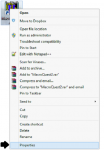
If you are not sure where your MacroQuest root directory is located. Find your MQ2 icon on your desktop. Should look something like below:

Right click the icon and choose Properties.
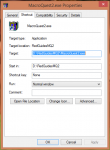
Locate the "Start In:" entry. This is your Macroquest2 root folder/directory(D:\RedGuidesMQ2). Yours may be different.
Now enter EverQuest with MQ2 loaded. From the MQ2 window use the following command:
/plugin list
Check to see if the MQ2Log plugin is listed. If the plugin is NOT listed then load the Plugin with the following command:
/plugin mq2log
You should get a confirmation message when the plugin loads.
Now lets create 3 social keys. One for turning on the log capture, and one for turning on and off the debug messages, and another for turning off the log capture.
Social Key 1:
Name: SLOG
Command 1: /mlog on
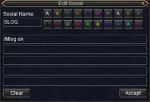
Social Key 2:
Name: ELOG
Command 1: /mlog off
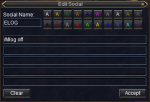
Social Key 3:
Name: DEBUG
Command 1: /debugall
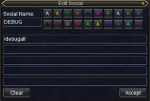
After creating your 3 social keys. It is now time to capture a log file.
You 2 options for starting the debug capture. One you can start the log capture before you launch Kissassist, or 2 wait and start the capture anytime after you start kissassist.
The following example starts the log first before you launch kissassist:
Step 1 - Press the SLOG social key.
Step 2 - Start kissassist
Step 3 - Press the DEBUG social key.
Step 4 - let kissAssist run until you have captured the errors or the problem has occurred.
Step 5 - Press the ELOG social key.
Step 6 - Press the DEBUG social key.
At this point you can let Kissassist continue to run or stop the macro. Now you need to get out of EQ and to your desktop. You can TAB out if you want or just camp to desktop. You do NOT have to stop kissassist or exit out of Everquest to continue with this guide. Just have to make sure that Mlog is off.
Step 7 - Find the log file.
From your desktop. open Windows Explorer and go to your MQ root directory. Now find the Logs folder, enter the logs folder(Double Click). Now find the .log file. The files in this folder are listed by Servername_CharacterName.log. Find the .log file for the character you just did the capture on. Open the file with a text editor, Notepad works fine.
New select the whole contents of the file and copy. From the menu, To select the contents, from the menu select Edit and choose Select All or use ,Ctrl+A keys. To copy the contents, from the menu select Edit and choose Copy, or use, Ctrl+C keys.
Step 8 - Post the log contents to redguides forums.
I think you can figure it out from here, plus there is plenty of information on the RedGuides site on how to create a post. Just remember to paste(Ctrl+V) the contents of the log file between CODE Tags.
Additional Information: It is a good idea before starting the log capture process to Delete the old log file in the Logs directory, if one exists. Also if you rename the log file to end with .txt and not .log you can post the file to the forums and not have to copy and paste the contents.
KISSAssist 12 Notes:
KissAssist has automated most of the process when it comes to loading the MQ2Log plugin and starting and ending the logging. We modified the /debug command. When running the KissAssist 12 macro use the /debug help for more information. the instructions above still apply for finding your log file. The hot keys will change to something like /debug all on log to start debug/logging, and /debug off to stop debug/logging.
This is a work in progress.
How to capture a Debug Log File.
What will I need?
1. To know where your MacroQuest2(MQ2) root directory is.
2. MQ2log plugin loaded.
3. Turn on MQ2Log to capture debug information to the log file.
4. Turn on Debug messages in KissAssist.
5. Turn off MQ2Log when finished.
6. Turn off Debug messages in KissAssist.
If you are not sure where your MacroQuest root directory is located. Find your MQ2 icon on your desktop. Should look something like below:
Right click the icon and choose Properties.
Locate the "Start In:" entry. This is your Macroquest2 root folder/directory(D:\RedGuidesMQ2). Yours may be different.
Now enter EverQuest with MQ2 loaded. From the MQ2 window use the following command:
/plugin list
Check to see if the MQ2Log plugin is listed. If the plugin is NOT listed then load the Plugin with the following command:
/plugin mq2log
You should get a confirmation message when the plugin loads.
Now lets create 3 social keys. One for turning on the log capture, and one for turning on and off the debug messages, and another for turning off the log capture.
Social Key 1:
Name: SLOG
Command 1: /mlog on
Social Key 2:
Name: ELOG
Command 1: /mlog off
Social Key 3:
Name: DEBUG
Command 1: /debugall
After creating your 3 social keys. It is now time to capture a log file.
You 2 options for starting the debug capture. One you can start the log capture before you launch Kissassist, or 2 wait and start the capture anytime after you start kissassist.
The following example starts the log first before you launch kissassist:
Step 1 - Press the SLOG social key.
Step 2 - Start kissassist
Step 3 - Press the DEBUG social key.
Step 4 - let kissAssist run until you have captured the errors or the problem has occurred.
Step 5 - Press the ELOG social key.
Step 6 - Press the DEBUG social key.
At this point you can let Kissassist continue to run or stop the macro. Now you need to get out of EQ and to your desktop. You can TAB out if you want or just camp to desktop. You do NOT have to stop kissassist or exit out of Everquest to continue with this guide. Just have to make sure that Mlog is off.
Step 7 - Find the log file.
From your desktop. open Windows Explorer and go to your MQ root directory. Now find the Logs folder, enter the logs folder(Double Click). Now find the .log file. The files in this folder are listed by Servername_CharacterName.log. Find the .log file for the character you just did the capture on. Open the file with a text editor, Notepad works fine.
New select the whole contents of the file and copy. From the menu, To select the contents, from the menu select Edit and choose Select All or use ,Ctrl+A keys. To copy the contents, from the menu select Edit and choose Copy, or use, Ctrl+C keys.
Step 8 - Post the log contents to redguides forums.
I think you can figure it out from here, plus there is plenty of information on the RedGuides site on how to create a post. Just remember to paste(Ctrl+V) the contents of the log file between CODE Tags.
Additional Information: It is a good idea before starting the log capture process to Delete the old log file in the Logs directory, if one exists. Also if you rename the log file to end with .txt and not .log you can post the file to the forums and not have to copy and paste the contents.
KISSAssist 12 Notes:
KissAssist has automated most of the process when it comes to loading the MQ2Log plugin and starting and ending the logging. We modified the /debug command. When running the KissAssist 12 macro use the /debug help for more information. the instructions above still apply for finding your log file. The hot keys will change to something like /debug all on log to start debug/logging, and /debug off to stop debug/logging.
This is a work in progress.
Last edited:


