


Attached are two files to get you started using advanced loot. Save both files to your everquest/userdata folder (/Daybreak Game Company/Installed Games/Everquest/userdata)
Please note that these loot filters are my own personal preference to always loot, always roll, and to always leave (but still roll in case someone else wants the item). You may not want the items I have, or you may want some items I do not. Please look through the files to see what you may want to change.
Change the servername to match the server you play on. Example: LF_AN_Madman_luclin.ini
In game type /advloot and click "Edit Filters" on the bottom left.
Click the "Merge / Replace Filters" button in the top left.
Find "Madman_servername" and select it and click either "Merge" or "Replace". I typically use merge, even on a brand new toon. I believe that if you use merge and there is a conflict, it will bring up a window and ask you what to do.
Who ever has the best loot filters should be the Master Looter. The leader of the group is the Master Looter by default.
Optional step: Click "Edit Filters" on the Loot window and see what is in there. If you found something in your file that you want to change, search for it in this window and make the changes.
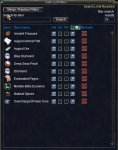
The options in the edit filters window are:
AN=Always Need
AG=Always Greed
NV=Never (as in never need/want and it will leave it on the corpse)
?/DICE=Roll on this item (so that whoever has it on ND (Need) or AN or GD (greed) or AG will roll for it)
REMOVE=Remove it from the filters so that the next time it pops up it will ask you what to do (including rolling)
Under "Loot Settings" you can select your options for the Master Looter.
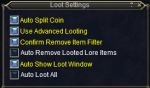
These are pretty self explanatory. Auto-Loot means that you'll auto-loot whatever is given to you. This way you can give gear to other toons without flipping over to check the green box that says "Yes, I'll loot this".
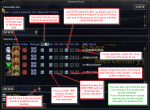
Here is another image that will hopefully explain what all the boxes are for the master looter:
Let me know if I missed anything and I'll update this!
Please note that these loot filters are my own personal preference to always loot, always roll, and to always leave (but still roll in case someone else wants the item). You may not want the items I have, or you may want some items I do not. Please look through the files to see what you may want to change.
Change the servername to match the server you play on. Example: LF_AN_Madman_luclin.ini
In game type /advloot and click "Edit Filters" on the bottom left.
Click the "Merge / Replace Filters" button in the top left.
Find "Madman_servername" and select it and click either "Merge" or "Replace". I typically use merge, even on a brand new toon. I believe that if you use merge and there is a conflict, it will bring up a window and ask you what to do.
Who ever has the best loot filters should be the Master Looter. The leader of the group is the Master Looter by default.
Optional step: Click "Edit Filters" on the Loot window and see what is in there. If you found something in your file that you want to change, search for it in this window and make the changes.
The options in the edit filters window are:
AN=Always Need
AG=Always Greed
NV=Never (as in never need/want and it will leave it on the corpse)
?/DICE=Roll on this item (so that whoever has it on ND (Need) or AN or GD (greed) or AG will roll for it)
REMOVE=Remove it from the filters so that the next time it pops up it will ask you what to do (including rolling)
Under "Loot Settings" you can select your options for the Master Looter.
These are pretty self explanatory. Auto-Loot means that you'll auto-loot whatever is given to you. This way you can give gear to other toons without flipping over to check the green box that says "Yes, I'll loot this".
Here is another image that will hopefully explain what all the boxes are for the master looter:
Let me know if I missed anything and I'll update this!
Attachments
Last edited:


 First time useer here. When i try to save this file to the folder its saying "i dont have permission to save it here" i am trying to save it in