• You've discovered RedGuides, an EverQuest multi-boxing and scripting community 🧙‍♀️⚙️. We want you to play several EQ characters at once, come join us and say hello! 👋

  • A TLP without truebox has thawed (Very Vanilla ready)
    Frostreaver
Add some style to your Notepad++ mac and inc files

Add some style to your Notepad++ mac and inc files 1.0

No permission to download
Joined
Dec 4, 2016
RedCents
7,973¢
Add a little Style to your macro's when using Notepad++
Importing MacroQuest2.xml as a language into Notepad++ will add the following color scheme and formatting to files of type .mac or .inc
Added: 2nd Version named MacroQuest2_wPlugin_TLOs includes all plugin TLO's methods and commands, the language name is different so you can install both and toggle between them.

If you dont know how to import or add a language go to the bottom of this page http://docs.notepad-plus-plus.org/index.php?title=User_Defined_Language_Files

PreProcessor - Gold
*Comments - Green
**Data Types - Bold Blue
Numbers - Red
***Block Defining - Blue
Flow Control - Blue
Labels - Gold
TLO's - Bold Blue
Methods - Blue Italic
Operators - Brown
Brackets - Light Blue
Scope - Light Blue
Key Words - Gold
MQ Commands - Bold Navy Blue
Plugin Commands - Bold Pink
Everquest Commands - Bold Purple

Meant to help visually recognize errors and assist with formatting and blocking so you can collapse huge blocks of code in macro's to make referencing other area's easier
Extensive lists for all the above categories to help recognize proper spelling, case, wether a TLO is being used or a method, calls to outside plugins, built in everquest commands, built in / enhanced MQ commands, etc.

Also included is a quick style reference list and a very long macro command reference both saved as .inc files to demonstrate formatting

* Single line comments need to start like this to apply the color |- this is so there is not a conflict with the || operator, | is still a comment as far as the language is concerned
** Not every Macroquest2 data type is here just the ones used most commonly in macro's, the others are mostly for compiled programs, if one is missing you'd like added....ask!
*** If there is more than 1 /return in a sub the entire block will not collapse, to fix this you can add a | Sub comment line near the top of the sub for each extra /return call found...with sound logic multiple /return in a sub can be avoided anyway usually

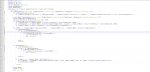
Before
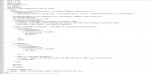
beforeformat.jpg

After
afterformat.jpg
 
Last edited by a moderator:
As much as I find myself engulfed in code I prefer it is not super bright white all the time. I downloaded yours and found that the dark background conflicted with the color scheme.

I do find it somewhat complicated to manage the setup the way I want it. Such as your issue with comments, I too have that issue. But I've just opted to go without a block style comment appearing obvious on screen. With | and |** it still shows up as a line style comment unless I do ||** which is annoying. But aside from that I enjoy my setup. You're welcome to it.

In order to get the dark background you still have to change your global background Via Settings~>Style Configurator Set to Global Styles, Global Override, Hit the background button and choose a dark color. Enjoy

Removing download. Please see my other download on post #13
 
Last edited:
As much as I find myself engulfed in code I prefer it is not super bright white all the time. I downloaded yours and found that the dark background conflicted with the color scheme.

I do find it somewhat complicated to manage the setup the way I want it. Such as your issue with comments, I too have that issue. But I've just opted to go without a block style comment appearing obvious on screen. With | and |** it still shows up as a line style comment unless I do ||** which is annoying. But aside from that I enjoy my setup. You're welcome to it.

In order to get the dark background you still have to change your global background Via Settings~>Style Configurator Set to Global Styles, Global Override, Hit the background button and choose a dark color. Enjoy


Ease my bloodshot eyes!
 
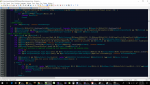
Here is a screen shot of my layout, Notice something different? Hmmmm.

notepad.PNG

I also use a black background. I use to get Migraines once a week, but after switching to a black background and using 50% blue light blocking glasses, I don't get Migraines nearly as often.
 
I use Geany which has most of the color code by default. Also allows side by side, search and replace, line numbers, etc. Not sure if it's any better than Notepad++, but it is free!
 
NP++ allows for side by side by right clicking the tab. You can choose various options such as Duplicate to other view, duplicate to new window, open in new window, with plugins you can do compares between files. IE: Compare new and old file to verify changes. Line numbers are clearly available, Search and replace with replace all, case sensitivity, exact match only. Find in file, find in all open files, in sub folders, hidden sub folders, find in selection, mark all search terms. etc. The list goes on. Notepadd++ is also free. As a side note. I need your function list plugin ctaylor22 Where does one get the plugin at please and thank you.
 
Yay, lots of nice layouts. I started this thread cause when I went to look for a language pack for NP++ I found almost nothing....a very old kinda limited version is available on the wiki.
Glad to see the different ones, hoping we can share our flavors in one spot so when someone goes looking for a lang pack they can find 1 thread and choose from a variety...that is if others are willing to share. ctaylor22 is that a plugin or did you add it to the parser? Care to share? I'd love to try that out! That was something I wanted to look into...to make np++ a bit more like a true ide, sucks constantly going back and forth from my mac to the wiki.
 
Yeah I looked into it. Looks like it's part of an xml file in %appdata% Notepad++ listed as functionlist.xml But if he's already got a functionlist.xml edited I'd prefer to just download his :-P
 
You have to edit the functionlist.xml file in your users appdata\Roaming\Notepad++ directory

Add the highlighted Association:

Rich (BB code):
			<association langID="1" id="php_function"/>
			<association langID="2" id="c_function"/>
			<association langID="3" id="c_cpp_function"/>
			<association langID="4" id="cs_function"/>
			<association langID="6" id="java"/>
			<association langID="9" id="xml_node"/>
			<association langID="12" id="batch_label"/>
			<association langID="13" id="ini_section"/>
			<association langID="19" id="js_function"/>
			<association langID="21" id="perl_function"/>
			<association langID="22" id="python_function"/>
			<association langID="26" id="bash_function"/>
			<association langID="28" id="nsis_syntax"/>
			<association userDefinedLangName="MQ2" id="mq2"/>

And then add the parser into the parser section:

Rich (BB code):
			<parser id="mq2" displayName="MacroQuest" commentExpr="&lt;!--([^-]|-(?!-&gt;))*--&gt;">
				<!-- Only match nodes with at least one attribute -->
				<function
				    mainExpr="^[\t ]*(sub|Sub)[\s]+[\w]*|^[\t ]*(sub|Sub)[\s]+[\w]+\(*"
					displayMode="$functionName">
					<functionName>
						<nameExpr expr="sub[\s]+[\w]*"/>
						<nameExpr expr="[\s]+[\w]*"/>
						<nameExpr expr="[\s]+[\w]+\(*"/>
						<nameExpr expr="[\w]*"/>
					</functionName>
				</function>
			</parser>

Last save your userdefined language as MQ2 or just change everywhere you see MQ2 used and replace it with the name of your user defined language. Make sure to open the functions window.
 
Okay, so @ctaylor22 got me sorted out. I just wasn't naming it correctly based on the existing language.

Included is a zip of my language -and- the functionlist file needed to go with it.

You can add functionlist.xml to C:\Users\YOURUSERNAME\AppData\Roaming\Notepad++

and then import the language file in the "Language" drop down and then select "Define your language..." option. Following by selecting "import"

This is of course assuming we share versions.

Additionally, I have my plugin manager working correctly and I use plugins for

BracketsCheck
Compare

BracketsCheck will ensure that your brackets are balance, but will throw false positives if you are searching a string .Equal[),|]} for example as found in KA in two locations.

I recommend only using it for curly brackets if you opt to use it.

The working plugin manager I found was located at https://github.com/bruderstein/nppPluginManager/releases

after installing that manually you can then use the plugin manager from within Notepad++
 

Attachments

Last edited:
Just a note (no pun), NP++ allows you to hold down the alt key and scroll vertically to select a column, or between columns, for editing or inserting. IE you can add the comment character to comment out large portions of code quickly and easily. Its one of the main features that drew me to NP++. I used to use UltraEdit for years and years which is where I learned that feature but got tired of licensing.
 
Oh, and regarding migraines and eye strain, oddly enough, I have been keeping 'Night Light' from the Action Center on 24/7. It 'warms' all the colors on the screen (read removes blue(s)) thus allowing me to avoid black backgrounds.
 
Function list is so nice! Highly recommend setting one up.

How do you remove a language from Notepad++?

Got bunch of unneeded custom definitions cluttering my Language menu. I suppose I could search XML files in Roaming for occurrences.

EDIT: Solved it! To remove a custom language go to Language -> Define Your Language -> select language in User language: pulldown menu and then a Remove button will appear.
 
@saar, try placing function list in the Program Files location of the Notepad++ folder.
There is a copy there as well and depending on how you set things up it may require you put it in the program files/notepad++/ folder
 
I'm using the 64bit version and it doesn't have anything in the appdata at all. I downloaded your stuff and imported the file for language and copied over the function part. I then loaded your lang file and selected the function window and nothing was there.
 
I recommend using the 32-bit version simply because there is more support for it in regards to plugins.

But with that said, there's no reason I can think that the functions list wouldn't work with the 64-bit version.


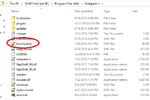
Below is where I keep mine, Keep in mind I D:\ is my secondary HDD.

functionlist.png

Putting it in this location should do the trick.

However, ensure that NPP isn't running when you overwrite the old file.

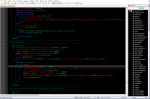
It's not going to show up on it's own by default. You'll need to ensure you tick the box for functionlist which is being pointed to by the arrows in the below photo. functionlist2.png
 
As a side note on the 64 bit version. I am using the 64 bit version on two different computers, but in separate setups. The one on my home laptop is installed as per normal, and there is an AppData folder and sub folder designation as listed above, but you have to go to the view menu option and unhide hidden items, as AppData is a hidden folder in your user directory.

The version I use on my work computer I had to install as a stand alone installation, as I do not have admin rights any longer to install software. So the files are all maintained in the NP++ folder in my download directory. The executable and the support files are all in that same folder.

(Side Rant: effin' Corporate politics "nobody but special people can install software". Three quarters of the time I have to sit next to the IT people to walk them through the complicated software installation process anyway, that's why they gave me permission way back when, so I could manage my own departments software needs.)
 
For the notepad++ users v7.9.1 has screwed the function list, there are ways to fix it but those did not work for me had to revert to v 7.9

 
Add some style to your Notepad++ mac and inc files

Users who are viewing this thread

Back
Top
Cart