
Install the app
How to install the app on iOS
Follow along with the video below to see how to install our site as a web app on your home screen.
Note: This feature may not be available in some browsers.
-
 You've discovered RedGuides, an EverQuest multi-boxing and scripting community 🧙♀️⚙️. We want you to play several EQ characters at once, come join us and say hello! 👋
 -
 There is a suspension/ban wave happening. We don't know why. Please keep regular discussion to Suspension MegaThread and please consider submitting a Suspension report to RG.
You are using an out of date browser. It may not display this or other websites correctly.
You should upgrade or use an alternative browser.
You should upgrade or use an alternative browser.
Guide - ISOBoxer - Anyone using with MQ2?
- Thread starter Maskoi
- Start date

W
Wolfborn
I"m not an uber boxer running 5 or 6 afk bots and I just started using MQ2 a few months ago so my tips will be basic.
1. Install and run Inner Space then ISBoxer Suite.
2. Open the configuration of Inner Space by right clicking the icon in task bar. Go to the Game Configuration tab and select "Everquest" as the game and "Everquest No Patch" in the drop down boxes.
3. Run the "Quick Setup Wizard". It will find all your toons. Select the first toon as your "master" toon. It will be on the main screen, first slot in CPU etc..
4. Name the team
5. Window layout. Right side has some configurations. I like to select Avoid Taskbar - False, Leave hole - True, Maintain aspect ratio - True (faster swapping) and since I have multiple monitors.. Cross-monitor swapping - True.
Then in the drop down box over the monitors.. select the style you like most.
6. I always set CPU as round robin and Background as 60fps instead of 30fps. Just makes it smoother when your team is moving etc..
7. Game control screen select MMO-Standard. leave "Broadcasting Mode starts ON in all windows" unchecked. You will want to remember the hot key combo (Shift+Alt+R) to enable this so you can log all toons in at once (helps if they all have same password) I like to default to OFF so that when I first switch to a toon.. I don't wind up driving the whole team across the GL or worse.. off some cliff somewhere, by accident as this turns on Broadcast Mode for all toons by default.
8. (forgot this step in first draft) Export settings to Inner Space. Go to File then Export... or Ctrl+E
That should do it for configuration. Right click on Inner Space go to "ISBoxer Character sets" and select the set you just made. Takes a little for ISBoxer to open and arrange all the windows.
Hit the Broadcast Mode hot key combo (Broadcast Mode ON or OFF will pop up on screen) to toggle Broadcast Mode ON and you'll be able to log all toons in at the same time. Turn off Broadcast Mode when you get all toons logged in. Alt+N cycles through the toons to bring them to main screen.
You'll notice a bar full of green squares. These represent the hot buttons in all the toons. Click one and it clicks that hot button (1 to =) on all toons except the master.
This helps a lot. Set your BOT START hot key button in = and END MAC button in - so when you click the corresponding green square on master it starts the macro on all slaves (or ends)
Be warned that when you click or press a hot key on the master. it does the same on all toons so align the hot keys accordingly. Works great for forcing a spell cast or forcing pet attack. (this can be turned off but I have grown to like it)
Be sure and end all macros before logging out.
Yep.. it was basic but that's what little I know up till now.
-Wolf
1. Install and run Inner Space then ISBoxer Suite.
2. Open the configuration of Inner Space by right clicking the icon in task bar. Go to the Game Configuration tab and select "Everquest" as the game and "Everquest No Patch" in the drop down boxes.
3. Run the "Quick Setup Wizard". It will find all your toons. Select the first toon as your "master" toon. It will be on the main screen, first slot in CPU etc..
4. Name the team
5. Window layout. Right side has some configurations. I like to select Avoid Taskbar - False, Leave hole - True, Maintain aspect ratio - True (faster swapping) and since I have multiple monitors.. Cross-monitor swapping - True.
Then in the drop down box over the monitors.. select the style you like most.
6. I always set CPU as round robin and Background as 60fps instead of 30fps. Just makes it smoother when your team is moving etc..
7. Game control screen select MMO-Standard. leave "Broadcasting Mode starts ON in all windows" unchecked. You will want to remember the hot key combo (Shift+Alt+R) to enable this so you can log all toons in at once (helps if they all have same password) I like to default to OFF so that when I first switch to a toon.. I don't wind up driving the whole team across the GL or worse.. off some cliff somewhere, by accident as this turns on Broadcast Mode for all toons by default.
8. (forgot this step in first draft) Export settings to Inner Space. Go to File then Export... or Ctrl+E
That should do it for configuration. Right click on Inner Space go to "ISBoxer Character sets" and select the set you just made. Takes a little for ISBoxer to open and arrange all the windows.
Hit the Broadcast Mode hot key combo (Broadcast Mode ON or OFF will pop up on screen) to toggle Broadcast Mode ON and you'll be able to log all toons in at the same time. Turn off Broadcast Mode when you get all toons logged in. Alt+N cycles through the toons to bring them to main screen.
You'll notice a bar full of green squares. These represent the hot buttons in all the toons. Click one and it clicks that hot button (1 to =) on all toons except the master.
This helps a lot. Set your BOT START hot key button in = and END MAC button in - so when you click the corresponding green square on master it starts the macro on all slaves (or ends)
Be warned that when you click or press a hot key on the master. it does the same on all toons so align the hot keys accordingly. Works great for forcing a spell cast or forcing pet attack. (this can be turned off but I have grown to like it)
Be sure and end all macros before logging out.
Yep.. it was basic but that's what little I know up till now.
-Wolf
Last edited:

PurpleKitty
New member
- Joined
- Jul 10, 2013
- RedCents
- 500¢
I run them together a lot. Wolf covered some getting started basics while I was typing mine but I'd like to throw some stuff on top of that.
1. You shouldn't have to setup the game configuration for Everquest in the InnerSpace console. It knows that if you play Everquest it should create a normal profile and a Patch Me profile. After all it was written by Lax who's a tad familiar with MQ2 requirements. In fact, it should autodetect the games you have installed and automatically add the standard profiles for them. If you have multiple versions of EQ like EQMac, EQTitanium for emus then you'd want to make sure it found the right one in which case you could do that following Wolf's instructions for the console game configuration. It may find and add them all. I can't remember now if I had to add the emu version or not. If it doesn't autodetect your game for some reason or to add a new game right click the Inner Space icon and choose Add Game.
2. The console game configuration tab is a way to change the details of a game profile. It doesn't guarantee that your team will launch with that profile. That is defined at the character level inside of IS Boxer. If you are making a new team this is done at the add character window during the Quick Start Wizard described by Wolf. If your set is already created and you don't want to redo it you can edit this at the character level. If you think you did it right but the game won't load with MQ2 running, you missed a profile on one of the toons. Been there did that. Frustrating.
3. The window layout stuff is entirely a matter of play style and purpose for using ISBoxer. I personally use full screen stacked on a single monitor for reasons I will discuss below. I have never had a reason on any of my machines to disagree with the suggested CPU management but that will also be a matter of personal tweakage based on your hardware and team size. I did figure out that I needed to turn off MQ2FPS. Using it combined with the frame limiting built into the default CPU management resulted in unpleasant flashing of my UI on my slaves. If you prefer or need MQ2FPS you can turn off the frame limiting in ISB if you find yourself in a similar state.
4. That "bar of green squares" is called a Menu. I say that not to be critical of Wolf but because if you have it in your head that its a BAR you may well get confused trying to follow written instructions or posts on the ISB site. Click Bars and Menus are two very different animals.
5. Never ever mention MQ2 or the word bot at the ISB forum. They are aggressive about policing that. Call them boxes or slaves. Bot and Box are not interchangeable at ISB.
My best advice actually goes beyond basics but I think they're worth mentioning because I suspect you'll not be content with the basics once you have a feel for what it can do. Plus I'm a just a total ISB fanboi. The rest is all dependent on your goal for incorporating ISB into your play. I personally find them absolutely must haves for my needs and playstyle. I actually enjoy the challenge of driving all my toons. I used to rely heavily on EQBC to make that possible. Now I not only don't need it at all I can actually do significantly more with ISB. My tips below come from my style of play. If all you want to do is be able to more easily navigate your team from place to place and start your macros without switching screens, Wolf's instructions and my number 5 below are all you need. I suspect that in the long run you won't be happy with MMO-Standard setup. (Heh, I'd be willing to be that about ANYONE who uses MQ2!) The real power is in the Like a Pro config style, a generic template for which has been built into the MMO-Pro. Learn it, love it.
My Tips and Setups:
1. Use the same size stacked windows so every instance is the exact same resolution and do all of your window tiling layouts via video feed. This is what allows mouse broadcasting to be so dang effective and keeps mini feeds crisp and clear. Exactly how to lay them out will depend on personal preference and number of monitors.
2. Learn about dxNothings. Easy instructions in the ISB Wiki. They are a way to launch a blank canvas upon which you can place ISB elements like video feeds. My toons are stacked on my main screen with a dxNothing on my second monitor. I then have reduced size feeds of full size EQ windows tiled on the canvas. Despite it being 4-5 toons depending on the team I can still read the screen clear enough to use the right click menu on the spell bar. YMMV depending on monitor size. I also found that turning that second monitor portrait style I got a better layout for my preferences. E.g. My four man team is main on display 1 with the three slaves top, middle and bottom on the portait monitor. Gives me bigger views of the slaves. Plus changing a video feed of a full size screen on the fly is easier than changing window layouts imo.
3. Use the exact same UI layout on every toon. This dovetails with number 2 and number 1. The combination of these three things allows me to run up to a quest giver and hit ONE button (which does Assist Me then turns on keyboard and mouse broadcasting) and then interact with that quest giver as a "single" toon while all six are doing it simultaneously. I type 'what lion meat. Everybody says "what lion meat" like a cute little choir. So cool. So convenient. In fact if you're getting started from scratch I'd create your basic team in ISB with the wizard, full screen stacked layout, log them all in, turn on mouse broadcasting and THEN start realigning your UI and setting up the hotkeys you need for ISB. You could just do it on one and then copy it over 5 times but the other way is faster if you're working from a fresh set up.
4. Use the exact same in game key binds for each and every character and be very careful when changing key binds while logged into a toon using ISB. ISB virtualizes the eqclient.ini for each character. This means that you are capable of using different in game keybinds per toon. Don't. It makes troubleshooting a nightmare. Get all your keybinds set up while logged into the game like normal before launching a new team. Whatever settings you had in the eqclient.ini when you launch an ISB character for the first time is the settings they will inherit. Changes made after the fact won't trickle down. If your toons already have their own eqclient_toonname.ini then you can quickly make everyone match by copy the contents of the eqclient.ini that contains the binds you want to each and every eqclient_toonname.ini.
3. Video Feeds are your friend. Your main driving toon can and should have a video feed of everything you might want to see in full size from another box. Using video feeds you can incorporate a gazillion useful things into your leader's UI. Everyone's cast bar, everyone's spell bars, your chanter's Xtar window. And, they aren't just visual aids, you can interact with them as if you were directly on that box. (Controlling mezzing from your tank exactly as you would if you were at the chanter's box? AWESOME!)
5. Find the stickied post in the EQ forum at ISB about following and assisting from any window. Set it up only use the /stick command instead of the /follow command. (Keep the fact that you are using stick in mind when you create your Break Follow buttons as depending on your stick settings, a simple back arrow may not work like it would for breaking /follow.)
I haven't done a ton of fancy integration of MQ2 into ISB though I've got some plans since the release of the Menu system. I intend to add a page to my multi page menu that's just a menu of mapped keys for my favorite MQ2 macros. Yes, I will have an MQ2 GUI. If I don't feel like manual control I have a mapped key to specific boxes that targets me (the MA) and starts Kiss Assist (WOOT!) and one that sends /endmac.
The possibilities for integration are really quite endless. Anything you can think to do using just MQ2 commands and EQ you can set up via ISB and probably better. Any command you can issue in game can be done via an ISB mapped key. There is an excellent guide series at ISB in the Everquest forum. If you want to really get the power out of your ISB/EQ combo read them. You already know what MQ2 can do so the ideas will just start flowing from there. I can't recommend ISB enough even if you only play a single EQ toon. The extensions you can provide to the EQ UI via menus and clickbars is quite impressive. I have a video feed set that I can turn on and off with a button that lets me see everyone's quest journal at once so I know who needs to loot what. I can control mezzing from my tank. I have a click bar for healing a la WoW addon. With a little time spent you can convert your entire game control over to a multi page, context sensitive "hotkey" menu controlled by a game pad and never really use the in game hotbuttons directly.
I love ISB.
1. You shouldn't have to setup the game configuration for Everquest in the InnerSpace console. It knows that if you play Everquest it should create a normal profile and a Patch Me profile. After all it was written by Lax who's a tad familiar with MQ2 requirements. In fact, it should autodetect the games you have installed and automatically add the standard profiles for them. If you have multiple versions of EQ like EQMac, EQTitanium for emus then you'd want to make sure it found the right one in which case you could do that following Wolf's instructions for the console game configuration. It may find and add them all. I can't remember now if I had to add the emu version or not. If it doesn't autodetect your game for some reason or to add a new game right click the Inner Space icon and choose Add Game.
2. The console game configuration tab is a way to change the details of a game profile. It doesn't guarantee that your team will launch with that profile. That is defined at the character level inside of IS Boxer. If you are making a new team this is done at the add character window during the Quick Start Wizard described by Wolf. If your set is already created and you don't want to redo it you can edit this at the character level. If you think you did it right but the game won't load with MQ2 running, you missed a profile on one of the toons. Been there did that. Frustrating.
3. The window layout stuff is entirely a matter of play style and purpose for using ISBoxer. I personally use full screen stacked on a single monitor for reasons I will discuss below. I have never had a reason on any of my machines to disagree with the suggested CPU management but that will also be a matter of personal tweakage based on your hardware and team size. I did figure out that I needed to turn off MQ2FPS. Using it combined with the frame limiting built into the default CPU management resulted in unpleasant flashing of my UI on my slaves. If you prefer or need MQ2FPS you can turn off the frame limiting in ISB if you find yourself in a similar state.
4. That "bar of green squares" is called a Menu. I say that not to be critical of Wolf but because if you have it in your head that its a BAR you may well get confused trying to follow written instructions or posts on the ISB site. Click Bars and Menus are two very different animals.
5. Never ever mention MQ2 or the word bot at the ISB forum. They are aggressive about policing that. Call them boxes or slaves. Bot and Box are not interchangeable at ISB.
My best advice actually goes beyond basics but I think they're worth mentioning because I suspect you'll not be content with the basics once you have a feel for what it can do. Plus I'm a just a total ISB fanboi. The rest is all dependent on your goal for incorporating ISB into your play. I personally find them absolutely must haves for my needs and playstyle. I actually enjoy the challenge of driving all my toons. I used to rely heavily on EQBC to make that possible. Now I not only don't need it at all I can actually do significantly more with ISB. My tips below come from my style of play. If all you want to do is be able to more easily navigate your team from place to place and start your macros without switching screens, Wolf's instructions and my number 5 below are all you need. I suspect that in the long run you won't be happy with MMO-Standard setup. (Heh, I'd be willing to be that about ANYONE who uses MQ2!) The real power is in the Like a Pro config style, a generic template for which has been built into the MMO-Pro. Learn it, love it.
My Tips and Setups:
1. Use the same size stacked windows so every instance is the exact same resolution and do all of your window tiling layouts via video feed. This is what allows mouse broadcasting to be so dang effective and keeps mini feeds crisp and clear. Exactly how to lay them out will depend on personal preference and number of monitors.
2. Learn about dxNothings. Easy instructions in the ISB Wiki. They are a way to launch a blank canvas upon which you can place ISB elements like video feeds. My toons are stacked on my main screen with a dxNothing on my second monitor. I then have reduced size feeds of full size EQ windows tiled on the canvas. Despite it being 4-5 toons depending on the team I can still read the screen clear enough to use the right click menu on the spell bar. YMMV depending on monitor size. I also found that turning that second monitor portrait style I got a better layout for my preferences. E.g. My four man team is main on display 1 with the three slaves top, middle and bottom on the portait monitor. Gives me bigger views of the slaves. Plus changing a video feed of a full size screen on the fly is easier than changing window layouts imo.
3. Use the exact same UI layout on every toon. This dovetails with number 2 and number 1. The combination of these three things allows me to run up to a quest giver and hit ONE button (which does Assist Me then turns on keyboard and mouse broadcasting) and then interact with that quest giver as a "single" toon while all six are doing it simultaneously. I type 'what lion meat. Everybody says "what lion meat" like a cute little choir. So cool. So convenient. In fact if you're getting started from scratch I'd create your basic team in ISB with the wizard, full screen stacked layout, log them all in, turn on mouse broadcasting and THEN start realigning your UI and setting up the hotkeys you need for ISB. You could just do it on one and then copy it over 5 times but the other way is faster if you're working from a fresh set up.
4. Use the exact same in game key binds for each and every character and be very careful when changing key binds while logged into a toon using ISB. ISB virtualizes the eqclient.ini for each character. This means that you are capable of using different in game keybinds per toon. Don't. It makes troubleshooting a nightmare. Get all your keybinds set up while logged into the game like normal before launching a new team. Whatever settings you had in the eqclient.ini when you launch an ISB character for the first time is the settings they will inherit. Changes made after the fact won't trickle down. If your toons already have their own eqclient_toonname.ini then you can quickly make everyone match by copy the contents of the eqclient.ini that contains the binds you want to each and every eqclient_toonname.ini.
3. Video Feeds are your friend. Your main driving toon can and should have a video feed of everything you might want to see in full size from another box. Using video feeds you can incorporate a gazillion useful things into your leader's UI. Everyone's cast bar, everyone's spell bars, your chanter's Xtar window. And, they aren't just visual aids, you can interact with them as if you were directly on that box. (Controlling mezzing from your tank exactly as you would if you were at the chanter's box? AWESOME!)
5. Find the stickied post in the EQ forum at ISB about following and assisting from any window. Set it up only use the /stick command instead of the /follow command. (Keep the fact that you are using stick in mind when you create your Break Follow buttons as depending on your stick settings, a simple back arrow may not work like it would for breaking /follow.)
I haven't done a ton of fancy integration of MQ2 into ISB though I've got some plans since the release of the Menu system. I intend to add a page to my multi page menu that's just a menu of mapped keys for my favorite MQ2 macros. Yes, I will have an MQ2 GUI. If I don't feel like manual control I have a mapped key to specific boxes that targets me (the MA) and starts Kiss Assist (WOOT!) and one that sends /endmac.
The possibilities for integration are really quite endless. Anything you can think to do using just MQ2 commands and EQ you can set up via ISB and probably better. Any command you can issue in game can be done via an ISB mapped key. There is an excellent guide series at ISB in the Everquest forum. If you want to really get the power out of your ISB/EQ combo read them. You already know what MQ2 can do so the ideas will just start flowing from there. I can't recommend ISB enough even if you only play a single EQ toon. The extensions you can provide to the EQ UI via menus and clickbars is quite impressive. I have a video feed set that I can turn on and off with a button that lets me see everyone's quest journal at once so I know who needs to loot what. I can control mezzing from my tank. I have a click bar for healing a la WoW addon. With a little time spent you can convert your entire game control over to a multi page, context sensitive "hotkey" menu controlled by a game pad and never really use the in game hotbuttons directly.
I love ISB.
PurpleKitty
New member
- Joined
- Jul 10, 2013
- RedCents
- 500¢
Oh here's another tip. To get help at the ISB forums you will often need to post your profile. Every name you've given a keymap, every command you've assigned in ISB and even your toon and server names are saved in your profile by default. If you want to be active there but not reveal yourself there's some steps you can take to ensure you don't accidentally out yourself. Instead of creating a mapped key that sends /endmac create a social that has /endmac on a hotbar with some in game keybind like Ctrl-F3 and then tell ISB to send Ctrl-F3 instead. Just be sure to also name the ISB mapped key benignly. You can also have multiple ISB profiles, they're just xml files. So another anonymity option would be saving your profile with Save As to a new name and temporarily renaming them generic stuff like Bard, Cleric, SK when you plan to post your profile for help. Or you can actually use names like that as your character names in ISB normally. ISB doesn't pick which toon to log in from character select, you do. So it really doesn't matter what you call that character in ISB so long as you knew which one you meant. And the eqclient files are virtualized so EQ doesn't realize that Gukthub the Shadowknight is using eqclient_sk.ini for its settings. The game thinks its eqclient.ini.
Oh and one more... say you had a whole bank of hotkeys that you've put simple commands on and you are sending the keybind via ISB, that hotbar doesn't have to be open in game to still work. The game still knows that Ctrl-F1 belongs to HotbarX, ButtonY and will still do whatever is in that social whether you can see it or not. If you are using a hidden hotbar and something stops working the first thing to check is whether you accidentally changed the page on the hotbar. As you should know in EQ, the keybind for HotbarX, ButtonY only refers to as specific position on the page of focus for HotbarX.
Oh and one more... say you had a whole bank of hotkeys that you've put simple commands on and you are sending the keybind via ISB, that hotbar doesn't have to be open in game to still work. The game still knows that Ctrl-F1 belongs to HotbarX, ButtonY and will still do whatever is in that social whether you can see it or not. If you are using a hidden hotbar and something stops working the first thing to check is whether you accidentally changed the page on the hotbar. As you should know in EQ, the keybind for HotbarX, ButtonY only refers to as specific position on the page of focus for HotbarX.


^ I'm with you. WinEQ2 forever.
http://www.lavishsoft.com/wiki/index.php/WinEQ_2
http://www.lavishsoft.com/download/wineq2
http://www.lavishsoft.com/wiki/index.php/WinEQ_2
http://www.lavishsoft.com/download/wineq2
It's not worth it. A sub fee for a program that should just be a flat fee.
While I normally would agree with you, I see it much like the sub to RG for compiled MQ2. It is there because they are always having to update it for new clients for most of the games. If there was a single purchase there would likely not be updates after a while and then the software would cease to function. Now MQ2 itself isn't sub based and survives but as the number of players (and I assume donators) has dwindled the updates seem slower and slower.


 It'll be a big help to some people I'm sure.
PurpleKitty
New member
- Joined
- Jul 10, 2013
- RedCents
- 500¢
@arch
My understanding of Launch without hooking surprises me that this would work. Launch without hooking is very rarely needed or used. The purpose is to launch something else and not hook ISBoxer.
Your symptoms indicate that all you needed was the patchme parameter added to your profile.
When you install InnerSpace it attempts to detect installed games. If InnerSpace does't autodetect EQ or if EQ is added after IS, you have to add it manually.
With InnerSpace running:
Right Click IS icon in tray
Select Add Game
In the Name field enter Everquest
In Game Executable, navigate to (or drag and drop) egame.exe
In Parameters type patchme
This would add the game Everquest with a profile called Everquest Default Profile and is essentially the equivalent of the shortcuts we all make to run EQ with MQ2.
If you already had Everquest in ISBoxer then you need to edit or add a profile. With IS running:
Right click the IS icon.
Choose Configuration
Click the Game Configuration tab
Choose Everquest from the drop down list.
Either choose the profile you want to edit from the second drop down or create a Everquest No Patch profile by clicking the New Profile button. Either way takes you to the same editor.
Main Executable filename should be eqgame.exe
Main executable parameters should be patchme
Main executable path should be your EQ directory.
Click Apply
Click Close Profile.
Close Inner Space.
Please note you can add a game via the Console but its not ideal. Add Game is simpler, faster and has a button to let you do file navigation to get the executable and directory.
My understanding of Launch without hooking surprises me that this would work. Launch without hooking is very rarely needed or used. The purpose is to launch something else and not hook ISBoxer.
Your symptoms indicate that all you needed was the patchme parameter added to your profile.
When you install InnerSpace it attempts to detect installed games. If InnerSpace does't autodetect EQ or if EQ is added after IS, you have to add it manually.
With InnerSpace running:
Right Click IS icon in tray
Select Add Game
In the Name field enter Everquest
In Game Executable, navigate to (or drag and drop) egame.exe
In Parameters type patchme
This would add the game Everquest with a profile called Everquest Default Profile and is essentially the equivalent of the shortcuts we all make to run EQ with MQ2.
If you already had Everquest in ISBoxer then you need to edit or add a profile. With IS running:
Right click the IS icon.
Choose Configuration
Click the Game Configuration tab
Choose Everquest from the drop down list.
Either choose the profile you want to edit from the second drop down or create a Everquest No Patch profile by clicking the New Profile button. Either way takes you to the same editor.
Main Executable filename should be eqgame.exe
Main executable parameters should be patchme
Main executable path should be your EQ directory.
Click Apply
Click Close Profile.
Close Inner Space.
Please note you can add a game via the Console but its not ideal. Add Game is simpler, faster and has a button to let you do file navigation to get the executable and directory.
LOL you pay a sub to RedGuides for a program. Granted there's a lot more value here but I doubt you sub here for the witty banter and still go to mq2 and manually download everything and compile.william12 said:It's not worth it. A sub fee for a program that should just be a flat fee.
You pay a sub for WinEQ2. And not only that but as Maskoi pointed out that sub is for Lavish products, not just WinEQ2. ISBoxer is actually WinEQ2 on steroids. ISBoxer is just sitting there waiting...hoping...begging for you to come play with it. C'mon....you know you wanna. /em dangles candy bag through the chain link fence.RedBot said:^ I'm with you. WinEQ2 forever.
LOL you pay a sub to RedGuides for a program. Granted there's a lot more value here but I doubt you sub here for the witty banter and still go to mq2 and manually download everything and compile.
.
That's exactly what I do
 I have a sub here and another site and use neither compile. I use my own.
3. Video Feeds are your friend. Your main driving toon can and should have a video feed of everything you might want to see in full size from another box. Using video feeds you can incorporate a gazillion useful things into your leader's UI. Everyone's cast bar, everyone's spell bars, your chanter's Xtar window. And, they aren't just visual aids, you can interact with them as if you were directly on that box. (Controlling mezzing from your tank exactly as you would if you were at the chanter's box? AWESOME!)
http://isboxer.com/wiki/Video_FX
This guide changed my entire view on ISBoxer from "Is this helping me?" to "Holy crap boxing just got easy".
The visual example of how this is useful really helped.
PurpleKitty
New member
- Joined
- Jul 10, 2013
- RedCents
- 500¢
I thought of something else. MQ2 has to be run as administrator or it won't show up in game when using ISB.
I thought of something else. MQ2 has to be run as administrator or it won't show up in game when using ISB.
Yes, good call. This fact should be included in any multi-boxing guide.
Right click your MQ2 shortcut -> properties -> advanced -> run as administrator
damonkeyman
New member
- Joined
- Dec 17, 2005
- RedCents
- 9¢
I've run ISBoxer for years with 2 monitors, and playing either Everquest or Eve Online. I show all of my characters on my screens at all times, and have one that i keep separate on another monitor also.
The quick setup wizard is key. Knowing what you want to do (how many characters, what you want the window names, etc) is something important. Personally, I never liked the repeater bars. I actually disabled the hotbar for that, though I cant remember off the top of my head how to do that. One thing that makes a huge difference, is your keyboard. I have a Logitech G510, and i have assigned keys through that for switching between characters. They will switch on my larger monitor, so the second monitor always shows the same character. I have also assigned macros through my keyboard for casting certain spells on a toon other than the main toon, this way I have no socials or commands in EQ or ISBoxer that I have to worry about somehow being seen.
Another thing you can do with ISBoxer that is a little easier, is if you decide you don't have enough characters, it is fairly easy to add another window, even using the same layout. It will adjust the ones on the bottom a little bit, but it is pretty straight forward in the FAQ on how to do that. I have done it several times, with both games, and it also allows me to launch both of them bypassing the patcher, even with Test and Beta servers.
I have not tried it with the eqtest compile, but I'm sure it would work exactly the same, just have to load the different mq2.exe, as it works just fine on the test server once you create an additional ISBoxer game profile for test.
The quick setup wizard is key. Knowing what you want to do (how many characters, what you want the window names, etc) is something important. Personally, I never liked the repeater bars. I actually disabled the hotbar for that, though I cant remember off the top of my head how to do that. One thing that makes a huge difference, is your keyboard. I have a Logitech G510, and i have assigned keys through that for switching between characters. They will switch on my larger monitor, so the second monitor always shows the same character. I have also assigned macros through my keyboard for casting certain spells on a toon other than the main toon, this way I have no socials or commands in EQ or ISBoxer that I have to worry about somehow being seen.
Another thing you can do with ISBoxer that is a little easier, is if you decide you don't have enough characters, it is fairly easy to add another window, even using the same layout. It will adjust the ones on the bottom a little bit, but it is pretty straight forward in the FAQ on how to do that. I have done it several times, with both games, and it also allows me to launch both of them bypassing the patcher, even with Test and Beta servers.
I have not tried it with the eqtest compile, but I'm sure it would work exactly the same, just have to load the different mq2.exe, as it works just fine on the test server once you create an additional ISBoxer game profile for test.
I've used ISBoxer since it came out. It eliminated all my macro lag and vid lag. I had up to 9 chars running and all the windows refreshing in real time across three monitors. It had a cruel learning curve, but was sick after it was all setup. On patch days I didn't care because I could still box pretty well. Clicking a button and having all your toons log in was sooo nice.
Of course using it without MQ2 led to a tank with all casters in the group. My SK with a mix of mages and wizards destroyed most things in seconds. I'll have to find some of my fraps and post.
Spyderz
Of course using it without MQ2 led to a tank with all casters in the group. My SK with a mix of mages and wizards destroyed most things in seconds. I'll have to find some of my fraps and post.
Spyderz
W
Wolfborn
Here's a small tip that helps me a lot when I've got one monitor full of 5 screens.. all of them too small to read.
Basically it puts a black rectangle in the screen with bright yellow name of the Toon in that window.
It's big enough so that when your looking at the small screens of each toon you can read it and tell which toon is which.
Bear with me as I'm not so good at images.
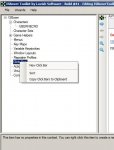
Create a new "Click Bar" by right clicking on the word "Click Bars" in the upper left box of the ISBoxer window.
Next is a big image showing what to do step by step.
Steps
1. Name the new click bar you just created. In this example I named it "Char_Name" so as to be self descriptive.
2. In the lower left hand area, click on "Buttons" to get the data screen in the lower right side.
3. Change the "Cell Width x Height" to 400 and 100 respectively (You can change this later if you prefer larger or smaller) then click on the "1.1" in the black area below the cell sizer.
This will bring up the data on the right hand side for the next step.
4. In the field labeled "Text" add this exactly as it is typed here "{CHARACTER}" of course without the quotes (This is an internal variable in ISBoxer)
5. Put a check in the checkbox "Text Style".
6. Click on the little black square beside the word "Color" to bring up the color picker and set the color to FFFF00 which is Yellow (or what ever your favorite color is) then click OK.
7. Change the font to something like 48 or 56 or 64. You can change this later if it's too big or not big enough. Check the check box for "Click Thru" which has not been done yet in this example.
8. Click once again in the lower left window.. on any of the words there.. then click on "Buttons" again to see if your changes are still there.
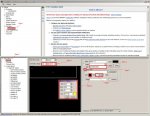
9. Select a character in the upper left box under the "Characters" item.
Next image shows how to get the "Char_Name" box associated with your toon.
10. Drag your new click bar, in this case "Char_Name" down to the "Click Bar" item in your character properties in the lower left.
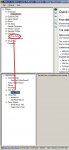
11. Save and "Export all to Inner Space" or Ctrl+E
12. You can go through and attach the new Click Bar to each toon if you want them all to have it. I do.
13. Log in to EQ using ISBoxer and you'll see the box in the upper left somewhere. When you get your toon logged in just hit "Shift+Ctrl+Alt+G" to bring up the ISBoxer Control Panel and it will give the name box a title bar. Using the title bar you can move it where ever you want on the screen. To save the position, select the "click bars" tab in ISBoxer Control Panel and then click on "Save as" in the lower left. Hit "Shift+Ctrl+Alt+G" again to close the ISBoxer Control Panel and..
Viola!!!
You'll have a box like this on each screen that you've associated the new Click Bar with.
The name is taken from the name under the "Characters" item so go back and change that name to what ever you want displayed on the name box.
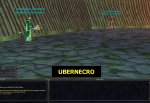
Enjoy!!
-Wolf
Basically it puts a black rectangle in the screen with bright yellow name of the Toon in that window.
It's big enough so that when your looking at the small screens of each toon you can read it and tell which toon is which.
Bear with me as I'm not so good at images.
Create a new "Click Bar" by right clicking on the word "Click Bars" in the upper left box of the ISBoxer window.
Next is a big image showing what to do step by step.
Steps
1. Name the new click bar you just created. In this example I named it "Char_Name" so as to be self descriptive.
2. In the lower left hand area, click on "Buttons" to get the data screen in the lower right side.
3. Change the "Cell Width x Height" to 400 and 100 respectively (You can change this later if you prefer larger or smaller) then click on the "1.1" in the black area below the cell sizer.
This will bring up the data on the right hand side for the next step.
4. In the field labeled "Text" add this exactly as it is typed here "{CHARACTER}" of course without the quotes (This is an internal variable in ISBoxer)
5. Put a check in the checkbox "Text Style".
6. Click on the little black square beside the word "Color" to bring up the color picker and set the color to FFFF00 which is Yellow (or what ever your favorite color is) then click OK.
7. Change the font to something like 48 or 56 or 64. You can change this later if it's too big or not big enough. Check the check box for "Click Thru" which has not been done yet in this example.
8. Click once again in the lower left window.. on any of the words there.. then click on "Buttons" again to see if your changes are still there.
9. Select a character in the upper left box under the "Characters" item.
Next image shows how to get the "Char_Name" box associated with your toon.
10. Drag your new click bar, in this case "Char_Name" down to the "Click Bar" item in your character properties in the lower left.
11. Save and "Export all to Inner Space" or Ctrl+E
12. You can go through and attach the new Click Bar to each toon if you want them all to have it. I do.
13. Log in to EQ using ISBoxer and you'll see the box in the upper left somewhere. When you get your toon logged in just hit "Shift+Ctrl+Alt+G" to bring up the ISBoxer Control Panel and it will give the name box a title bar. Using the title bar you can move it where ever you want on the screen. To save the position, select the "click bars" tab in ISBoxer Control Panel and then click on "Save as" in the lower left. Hit "Shift+Ctrl+Alt+G" again to close the ISBoxer Control Panel and..
Viola!!!
You'll have a box like this on each screen that you've associated the new Click Bar with.
The name is taken from the name under the "Characters" item so go back and change that name to what ever you want displayed on the name box.
Enjoy!!
-Wolf
W
Wolfborn
Another tidbit of ISBoxer knowledge to pass on.
Wolf, how do I get rid of that stupid FPS and Memory text floating on my screen? I can't see my ping times!!
Don't fret kids, it's not that hard.
1. Make sure EQ isn't running but Innerspace is running.
2. Right click on the Innerspace icon in the "Notification Area" (down in the lower right where all the little icons are) and select "Configuration"
Up pops the Inner Space Configuration window that looks like this:
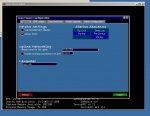
3. Click on the "General" tab to get to the screen of importance, The Session Startup!
See the little blue box with the word "Startup" under "Session" ?? Click that to get the next screen.
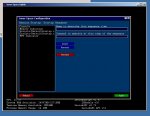
4. In the box on the left, select FPS Indicator and notice it fills out the two text boxes on the right?
5. Click the word "Remove" in the little blue box.
6. Repeat for Memory Indicator if you want that gone too.
Like this:
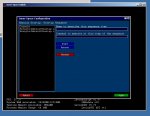
7. Click the word "Finished" in the red box.
8. At this point you can close the window and resume normal EQ fun and excitement.
or
you can choose the blue pill and see just how deep the rabbit hole goes.
OK Matrix jokes aside. (my favorite movie of all time)
EQ has an FPS limiter built in so why do we need ANOTHER FPS limiter?
Call me anal but I think one is enough so I disable the FPS limiter in ISBoxer.
1. While you have the Inner Space Configuration window open go to the "FPS Limiter" tab.
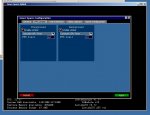
2. Click the little red ball things to deselect both "Foreground" and "Background" limiting like so.
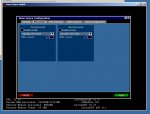
3. Click "Apply" and that's it.
Wolf!! What have you done to my FPS indicator? I love watching that thing.
BREAK GLASS IN CASE OF EMERGENCY
My extensive training and years of experience have prepared me for just such an emergency!!!
For FPS:
FPS Indicator
hudgroup -show "fps indicator"
For Memory:
Memory Indicator
hudgroup -show "memory indicator"
1. Get back to the Inner Space Configuration screen following the above instructions.
2. Keep going until you reach the "Session Startup: Startup Sequence" screen where we removed the FPS and Memory settings.
3. Click the word "Insert" in the blue box. You will see a new item added named "New Entry". Select it.
4. In the text box "Name to describe this sequence item" back space and delete the word "New Entry". In it's place type "FPS Indicator"
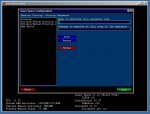
5. In the box below it, "Command to execute at this step of the sequence" type in "hudgroup -show "fps indicator"" (fps indicator has to be in quotes).
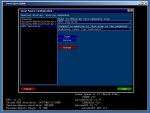
6. Click the word "Finished" in the red box and close the window or repeat the same for Memory Indicator using the provided text.
7. Resume fun and excitement in EQ!
-Wolf
Wolf, how do I get rid of that stupid FPS and Memory text floating on my screen? I can't see my ping times!!
Don't fret kids, it's not that hard.
1. Make sure EQ isn't running but Innerspace is running.
2. Right click on the Innerspace icon in the "Notification Area" (down in the lower right where all the little icons are) and select "Configuration"
Up pops the Inner Space Configuration window that looks like this:
3. Click on the "General" tab to get to the screen of importance, The Session Startup!
See the little blue box with the word "Startup" under "Session" ?? Click that to get the next screen.
4. In the box on the left, select FPS Indicator and notice it fills out the two text boxes on the right?
5. Click the word "Remove" in the little blue box.
6. Repeat for Memory Indicator if you want that gone too.
Like this:
7. Click the word "Finished" in the red box.
8. At this point you can close the window and resume normal EQ fun and excitement.
or
you can choose the blue pill and see just how deep the rabbit hole goes.
OK Matrix jokes aside. (my favorite movie of all time)
EQ has an FPS limiter built in so why do we need ANOTHER FPS limiter?
Call me anal but I think one is enough so I disable the FPS limiter in ISBoxer.
1. While you have the Inner Space Configuration window open go to the "FPS Limiter" tab.
2. Click the little red ball things to deselect both "Foreground" and "Background" limiting like so.
3. Click "Apply" and that's it.
Wolf!! What have you done to my FPS indicator? I love watching that thing.
BREAK GLASS IN CASE OF EMERGENCY
My extensive training and years of experience have prepared me for just such an emergency!!!
For FPS:
FPS Indicator
hudgroup -show "fps indicator"
For Memory:
Memory Indicator
hudgroup -show "memory indicator"
1. Get back to the Inner Space Configuration screen following the above instructions.
2. Keep going until you reach the "Session Startup: Startup Sequence" screen where we removed the FPS and Memory settings.
3. Click the word "Insert" in the blue box. You will see a new item added named "New Entry". Select it.
4. In the text box "Name to describe this sequence item" back space and delete the word "New Entry". In it's place type "FPS Indicator"
5. In the box below it, "Command to execute at this step of the sequence" type in "hudgroup -show "fps indicator"" (fps indicator has to be in quotes).
6. Click the word "Finished" in the red box and close the window or repeat the same for Memory Indicator using the provided text.
7. Resume fun and excitement in EQ!
-Wolf
Attachments

etherealmist
Active member
- Joined
- May 1, 2011
- RedCents
- 1,783¢
I just started using ISBoxer a few days ago, its way better than using the standard EQ clients. If you have an intel CPU (or even if you don't) it'll balance the load throughout your multiprocessor CPU a lot more efficiently than just playing the normal game. The only thing I don't like (or haven't figured out how to do it) is you can't minimize everything. I'm sure there is a way though, just haven't really looked into it at all.
I use splashtop streamer to stream to my phone/tablet/work computer so I can monitor the bots doing their thing while not at my computer, and having a nice clean layout with all of your bots shown really helps.
I use splashtop streamer to stream to my phone/tablet/work computer so I can monitor the bots doing their thing while not at my computer, and having a nice clean layout with all of your bots shown really helps.
I am using ISBoxer for about 2 years now, but I have never used MQ2 before /hide
My ultimate goal is to start using MQ2 together with ISBoxer, where I control my tank manually and the rest of my team by MQ2.
Any pointers to guides or anything to send me on my way would be appreciated =)
My box team is SHD, MAG, WIZ and a BRD.
@Etherealmist: Not sure what you mean by minimizing everything, but afaik you can make the clients as small as you want with ISBoxer.
My ultimate goal is to start using MQ2 together with ISBoxer, where I control my tank manually and the rest of my team by MQ2.
Any pointers to guides or anything to send me on my way would be appreciated =)
My box team is SHD, MAG, WIZ and a BRD.
@Etherealmist: Not sure what you mean by minimizing everything, but afaik you can make the clients as small as you want with ISBoxer.

Hanlons Razor
Well-known member
- Joined
- Jan 7, 2013
- RedCents
- 949¢
I am using ISBoxer for about 2 years now, but I have never used MQ2 before /hide
My ultimate goal is to start using MQ2 together with ISBoxer, where I control my tank manually and the rest of my team by MQ2.
Any pointers to guides or anything to send me on my way would be appreciated =)
My box team is SHD, MAG, WIZ and a BRD.
@Etherealmist: Not sure what you mean by minimizing everything, but afaik you can make the clients as small as you want with ISBoxer.
I run a team with ISBoxer and MQ2 that includes SHD, MNK, MAG, DRU, BRD, SHM. I am by no means an expert. In fact I'm just starting and have been slowly assimilating these forums and incorporating ideas.
Currently I am using ISBoxer on minimum settings - basically it autolaunches all my clients for MQ2autologin to log them all in, then I have hotkeys (Ctrl+1-6) to swap between full-screen windows very quickly/easily. Eventually, I'll setup the visual FX to have each character's cast bars showing on the main screen so I can keep up with what they're up to. ISBoxer is a bit confusing to setup, but it's all pretty intuitive if you take your time and figure out how the menu layout works, plus some google-fu when you hit a wall. Tons of great info in this thread that I'll be referencing as I get more advanced.
I use EQBC to issue commands between windows rather than the ISBoxer broadcasting or hotbar. It's just my preference for now, but I may incorporate more ISBoxer features later. Here are some commands that I use constantly:
Tell the bard to hold his current twist and play Selo's Song of Travel.
Rich (BB code):
/bct "Bard" //twist hold 7
Rich (BB code):
/bct "Bard" //twist start
Rich (BB code):
/bca //target "SK"
/bca //mac kissassist
Rich (BB code):
/bca //chase
Rich (BB code):
/bca //camphere
Rich (BB code):
/bca //endmac
Rich (BB code):
/bca //target "SK"
/bca //afollow
Rich (BB code):
/bca //afollow offWith these simple commands, I can cross zones, find camp and move camp without ever changing focus or spending much time on it. I have others that are more specific to my team, like telling my mage to CoH me to facilitate splitting easier and having the druid evac or succor us. Hope it helps a little to get you started.
antechrist
New member
- Joined
- Dec 21, 2013
- RedCents
- 28¢
I started out using IS boxer because MQ2 wasn't available on the Test server for the longest time. I just started using MQ2 and once I got comfortable with controlling one toon on my laptop I went to my desktop and launched my three box team in ISboxer.
Now it seems like running MQ2 while ISboxer is running causesEverquest to freeze. Any advice?
Now it seems like running MQ2 while ISboxer is running causesEverquest to freeze. Any advice?
etherealmist
Active member
- Joined
- May 1, 2011
- RedCents
- 1,783¢
@Etherealmist: Not sure what you mean by minimizing everything, but afaik you can make the clients as small as you want with ISBoxer.
No like, to hide your game window, and show your desktop, but I realized I could just right-click the taskbar and "show desktop", lol
W
Wolfborn
How to make a "Master" ini file for ISBoxer to use for your characters.
How to make and use a MASTER ini file for ISBoxer
First off.. what's a "Master" ini file and why do I want one??
Everquest uses a file named "eqclient.ini" to retain a lot of your settings. ISBoxer makes a copy of this file for each character so that you can customize each character and have it retain these settings.
So why make a Master?
A master will give you a base to work with, allow you to change a bunch of settings that you know you will always use and then each new character you add to ISBoxer will start with these base settings.
What settings are you talking about Wolf???
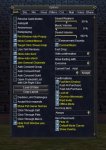
When you're in Everquest and you hit "Alt+O" or click the Options button on the Menu bar you get a box full of tabs to set all sorts of things like video settings, mouse settings, sound settings, key maps etc.. I'm sure you've seen it.
View attachment 6073
Making the Master File
This applies to both the new user and the user with characters already setup in ISBoxer.
Basically you want to build your eqclient.ini file the way you like it and get all your toons to use these settings.
Start by logging into Everquest using the normal way. IE just like you're used to doing on patch day. Make sure MQ2 is not running. Launch Everquest using the normal icon.
Log into any character, doesn't matter.
Open your options window via "Alt+o" or options icon in the Everquest menu.
Go through each tab changing the options to your desired settings. Be sure and access the "Advanced" button in the "Display" tab. Set the mouse sensitivity under the "Mouse" tab, key maps under "Keys" tab etc.. Sadly the voice chat selection is not carried over in the eqclient.ini file and has to be changed on each character. Don't forget to turn off "Enable EQPlayers Updates". I know it's not working but you never know if the code is trying to hit the website or not. Better to turn it off and save a few cycles (I'm anal that way).
Another tip is to turn on "Fast Item Destroy" under General tab. It speeds up looting for those using Ninjadvloot. I also turn off "Loot All" so that box doesn't pop up each time I hit "Loot All" button in the loot window.
When you've got all the settings to your liking, log out and shut down Everquest completely.
Extra tip
Being a little anal and also a little older, I try to streamline my game play. One thing I've found is if I set all my characters UI the same it tends to speed things up as I always know where the target window, spell bar, health bar etc.. are. To do this, before you log out of EQ.
Set your session to full screen either by clicking in the options under display or hitting "Alt+Enter" to get full screen.
Set all your windows like you want. Chat windows, target windows.. all of them. Also set your backgrounds like you want. Personally I prefer the black background in my windows so I set those all to black and my fade percent to 80ish. Except the map window.. I set the fade percent to 10 so it disappears and just leaves the map showing.
Now when you log out your UI will be saved under that character name and that resolution.
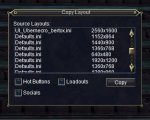
When you log in a character, open up the options and click the "Copy Layout" button under the General tab. Select the character and resolution that you made and hit the copy button. Do this on all characters and all will have the exact same window layout, background color etc.. Very handy (of course don't do this until you've finished the Master File setup)
Back to the regularly scheduled program....
New to ISBoxer (no characters loaded yet)
After you get ISBoxer / Innerspace installed and running.
Launch ISBoxer Suite.

If you prefer to use the Quick Setup Wizard then ISBoxer will setup your eqclient.ini and eqlsPlayerData.ini files for you and your done as long as you made the Master ini file before you ran the wizard.
If you already ran the wizard but want to use the master, jump to next section.
If you manually added characters then you will need to add the files to that character like so.
1. Select the character you want to use the master files.
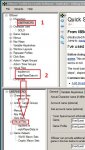
2. Drag the "eqclient.ini" and "eqlsPlayerData.ini" down and drop on the "Virtual Files" category.
If you don't see any files under "Virtual Files" just right click on "Virtual Files" and select "Virtual File Wizard".
In the top most drop down box select "EverQuest (eqclient.ini, eqlsPlayerData.ini)".
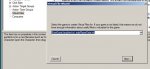
Hit Next and in the next window it will allow you to add the files to any characters you have already loaded. I use "select all" and then "Finish".
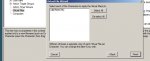
Go to the ISBoxer menu under File -> Export All to Innerspace. You may get warnings about full screen etc.. just hit Yes on all of them and ISBoxer will set your character to work right with Innerspace.
A file(s) will be saved in your Everquest folder. In the case of my good friend Ubernecro the file will be "eqclient-UBERNECRO.ini". (note that it takes the name under the Characters category)
This will allow customization to this character and this character alone but it will be based on the Master "eqclient.ini" file we created earlier.
Note: a file "eqlsPlayerData-UBERNECRO.ini" is also created but it's not as important as the eqclient-UBERNECRO.ini file. Very few settings are saved in this file.
That is the basics of how to get your characters to use a Master file for about 80 to 90% of the settings in Everquest.
Existing ISBoxer user with characters already set up
You've got characters already loaded into ISBoxer but you have to tweak the settings in Everquest Options each time you add a new character or you want to make some changes that you want to affect all your existing characters. ie. you want to adjust video settings across the board to try and smooth out game play for your team or you want to enable "Fast Item Destroy" on all existing and future characters.
Follow the setup for a new character. ie. load up a character in Everquest normally and without MQ2 running. Adjust all the options to your liking. log out of Everquest.
Go to your Everquest folder and delete all "eqclient-Character Name.ini" and "eqlsPlayerData-Character Name.ini" files.
Hint: When you're trying to find the files. Click on your EverQuest folder in the left panel of File Explorer, then single click on a file or folder in the right side panel of File Explorer to select it (any file, doesn't matter) then quickly hit the "e" and "q" key. This will jump you down to the eq~~~~ files area and save 30 minutes of scrolling.
Open ISBoxer Suite
Then.. File -> Export All to Innerspace and your Done!
ISBoxer has generated new files based on the new settings in the Master.
To recap.
1. Change settings in Master eqclient.ini by logging into Everquest without MQ2 running.
2. Delete old "eqclient-Character Name.ini" and "eqlsPlayerData-Character Name.ini" files.
3. Open ISBoxer and "Export All to Innerspace" to regenerate new files.
Enjoy!
-Wolf
How to make and use a MASTER ini file for ISBoxer
First off.. what's a "Master" ini file and why do I want one??
Everquest uses a file named "eqclient.ini" to retain a lot of your settings. ISBoxer makes a copy of this file for each character so that you can customize each character and have it retain these settings.
So why make a Master?
A master will give you a base to work with, allow you to change a bunch of settings that you know you will always use and then each new character you add to ISBoxer will start with these base settings.
What settings are you talking about Wolf???
When you're in Everquest and you hit "Alt+O" or click the Options button on the Menu bar you get a box full of tabs to set all sorts of things like video settings, mouse settings, sound settings, key maps etc.. I'm sure you've seen it.
View attachment 6073
Making the Master File
This applies to both the new user and the user with characters already setup in ISBoxer.
Basically you want to build your eqclient.ini file the way you like it and get all your toons to use these settings.
Start by logging into Everquest using the normal way. IE just like you're used to doing on patch day. Make sure MQ2 is not running. Launch Everquest using the normal icon.
Log into any character, doesn't matter.
Open your options window via "Alt+o" or options icon in the Everquest menu.
Go through each tab changing the options to your desired settings. Be sure and access the "Advanced" button in the "Display" tab. Set the mouse sensitivity under the "Mouse" tab, key maps under "Keys" tab etc.. Sadly the voice chat selection is not carried over in the eqclient.ini file and has to be changed on each character. Don't forget to turn off "Enable EQPlayers Updates". I know it's not working but you never know if the code is trying to hit the website or not. Better to turn it off and save a few cycles (I'm anal that way).
Another tip is to turn on "Fast Item Destroy" under General tab. It speeds up looting for those using Ninjadvloot. I also turn off "Loot All" so that box doesn't pop up each time I hit "Loot All" button in the loot window.
When you've got all the settings to your liking, log out and shut down Everquest completely.
Extra tip
Being a little anal and also a little older, I try to streamline my game play. One thing I've found is if I set all my characters UI the same it tends to speed things up as I always know where the target window, spell bar, health bar etc.. are. To do this, before you log out of EQ.
Set your session to full screen either by clicking in the options under display or hitting "Alt+Enter" to get full screen.
Set all your windows like you want. Chat windows, target windows.. all of them. Also set your backgrounds like you want. Personally I prefer the black background in my windows so I set those all to black and my fade percent to 80ish. Except the map window.. I set the fade percent to 10 so it disappears and just leaves the map showing.
Now when you log out your UI will be saved under that character name and that resolution.
When you log in a character, open up the options and click the "Copy Layout" button under the General tab. Select the character and resolution that you made and hit the copy button. Do this on all characters and all will have the exact same window layout, background color etc.. Very handy (of course don't do this until you've finished the Master File setup)
Back to the regularly scheduled program....
New to ISBoxer (no characters loaded yet)
After you get ISBoxer / Innerspace installed and running.
Launch ISBoxer Suite.
If you prefer to use the Quick Setup Wizard then ISBoxer will setup your eqclient.ini and eqlsPlayerData.ini files for you and your done as long as you made the Master ini file before you ran the wizard.
If you already ran the wizard but want to use the master, jump to next section.
If you manually added characters then you will need to add the files to that character like so.
1. Select the character you want to use the master files.
2. Drag the "eqclient.ini" and "eqlsPlayerData.ini" down and drop on the "Virtual Files" category.
If you don't see any files under "Virtual Files" just right click on "Virtual Files" and select "Virtual File Wizard".
In the top most drop down box select "EverQuest (eqclient.ini, eqlsPlayerData.ini)".
Hit Next and in the next window it will allow you to add the files to any characters you have already loaded. I use "select all" and then "Finish".
Go to the ISBoxer menu under File -> Export All to Innerspace. You may get warnings about full screen etc.. just hit Yes on all of them and ISBoxer will set your character to work right with Innerspace.
A file(s) will be saved in your Everquest folder. In the case of my good friend Ubernecro the file will be "eqclient-UBERNECRO.ini". (note that it takes the name under the Characters category)
This will allow customization to this character and this character alone but it will be based on the Master "eqclient.ini" file we created earlier.
Note: a file "eqlsPlayerData-UBERNECRO.ini" is also created but it's not as important as the eqclient-UBERNECRO.ini file. Very few settings are saved in this file.
That is the basics of how to get your characters to use a Master file for about 80 to 90% of the settings in Everquest.
Existing ISBoxer user with characters already set up
You've got characters already loaded into ISBoxer but you have to tweak the settings in Everquest Options each time you add a new character or you want to make some changes that you want to affect all your existing characters. ie. you want to adjust video settings across the board to try and smooth out game play for your team or you want to enable "Fast Item Destroy" on all existing and future characters.
Follow the setup for a new character. ie. load up a character in Everquest normally and without MQ2 running. Adjust all the options to your liking. log out of Everquest.
Go to your Everquest folder and delete all "eqclient-Character Name.ini" and "eqlsPlayerData-Character Name.ini" files.
Hint: When you're trying to find the files. Click on your EverQuest folder in the left panel of File Explorer, then single click on a file or folder in the right side panel of File Explorer to select it (any file, doesn't matter) then quickly hit the "e" and "q" key. This will jump you down to the eq~~~~ files area and save 30 minutes of scrolling.
Open ISBoxer Suite
Then.. File -> Export All to Innerspace and your Done!
ISBoxer has generated new files based on the new settings in the Master.
To recap.
1. Change settings in Master eqclient.ini by logging into Everquest without MQ2 running.
2. Delete old "eqclient-Character Name.ini" and "eqlsPlayerData-Character Name.ini" files.
3. Open ISBoxer and "Export All to Innerspace" to regenerate new files.
Enjoy!
-Wolf
Hanlons Razor
Well-known member
- Joined
- Jan 7, 2013
- RedCents
- 949¢
Great info wolf
Users who are viewing this thread
Total: 1 (members: 0, guests: 1)
Share: