


- Joined
- Mar 23, 2019
- RedCents
- 8,987¢
- Pronouns
- He/Him
Ever notice when you create that first Lua ImGUI window it looks something like this?
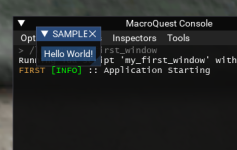
It's soo small!
So, you happily resize the window and keep building. Within weeks your project is complete.
You Post your grand work to RedGuides and users quickly download it.
But when they launch it for the first time, they get the same disappointing result. A tiny box in the corner of the screen, barely visible that they need to move and resize.
I'll explain how to fix that and even offer some sample working code you can use to create a better user experience for your scripts. Since "you can never get a second first impression", make the first impression count!
ImGui keeps track of the windows it creates in a series of .ini files. It tracks the sizes and locations of these files so that the next time they are launched, they render in the same location and size the user positioned them last. Of course, the developer of the script can override this default setting, but in most cases, this is how the ImGui windows operate.
Unfortunately, the first time the window opens, it has no information available so it opens as a small baby window in the left upper corner. A window so small, it would fit in the palm of Hytiek's hand!
To remedy this, the developer needs to program a preferred behavior into the script.
ImGui has some handy condition Flags we are going to use. The
We combine that flag with a
I've added a bit more here to center the new window on the screen and wrapped it all up as a function. This way it's portable and can be used in any of your existing scripts.
[CODE lang="Lua" title="First Use Window Size Setter"]---Creates a better UX by setting a resonable default
---window size that will open in the middle of the
---screen the first time the script is ran.
---@param xSize integer
---@param ySize integer
local function first_window_use(xSize, ySize)
ImGui.SetNextWindowSize(xSize, ySize, ImGuiCond.FirstUseEver)
local io = ImGui.GetIO()
local center_x = io.DisplaySize.x / 2
local center_y = io.DisplaySize.y / 2
ImGui.SetNextWindowPos(center_x - xSize / 2, center_y - ySize / 2, ImGuiCond.FirstUseEver)
end[/CODE]
The function takes two arguments, the x and y size of your window.
In use, it would look something like this
[CODE lang="Lua" title="Using the function" highlight="2"]local function draw_window()
first_window_use(400, 400)
ImGui.Button("Hello World!")
end[/CODE]
Now on first use you get something more like this:
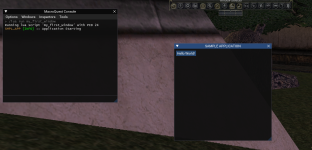
Here's to happy scripting!
~Cold
It's soo small!
So, you happily resize the window and keep building. Within weeks your project is complete.
You Post your grand work to RedGuides and users quickly download it.
But when they launch it for the first time, they get the same disappointing result. A tiny box in the corner of the screen, barely visible that they need to move and resize.
I'll explain how to fix that and even offer some sample working code you can use to create a better user experience for your scripts. Since "you can never get a second first impression", make the first impression count!
ImGui keeps track of the windows it creates in a series of .ini files. It tracks the sizes and locations of these files so that the next time they are launched, they render in the same location and size the user positioned them last. Of course, the developer of the script can override this default setting, but in most cases, this is how the ImGui windows operate.
Unfortunately, the first time the window opens, it has no information available so it opens as a small baby window in the left upper corner. A window so small, it would fit in the palm of Hytiek's hand!
To remedy this, the developer needs to program a preferred behavior into the script.
ImGui has some handy condition Flags we are going to use. The
ImGuiCond.FirstUseEver flag is used to indicate to ImGui that if no size information is available to the framework in the .ini file, this condition is met.We combine that flag with a
ImGui.SetNextWindowSize method, so that in the case we have no window postion or size information, let's open the next window at a pre-set size. Not baby smol!I've added a bit more here to center the new window on the screen and wrapped it all up as a function. This way it's portable and can be used in any of your existing scripts.
[CODE lang="Lua" title="First Use Window Size Setter"]---Creates a better UX by setting a resonable default
---window size that will open in the middle of the
---screen the first time the script is ran.
---@param xSize integer
---@param ySize integer
local function first_window_use(xSize, ySize)
ImGui.SetNextWindowSize(xSize, ySize, ImGuiCond.FirstUseEver)
local io = ImGui.GetIO()
local center_x = io.DisplaySize.x / 2
local center_y = io.DisplaySize.y / 2
ImGui.SetNextWindowPos(center_x - xSize / 2, center_y - ySize / 2, ImGuiCond.FirstUseEver)
end[/CODE]
The function takes two arguments, the x and y size of your window.
In use, it would look something like this
[CODE lang="Lua" title="Using the function" highlight="2"]local function draw_window()
first_window_use(400, 400)
ImGui.Button("Hello World!")
end[/CODE]
Now on first use you get something more like this:
Here's to happy scripting!
~Cold